Failed card payments
Loading…
Sometimes a card payment does not go through, for example because the card has expired or there is not enough money on the account. Askja shows these payments in one place, retries them automatically, and lets you contact the payer.
Example: Noah Bennett's monthly payment failed because his card expired.
Click the coin icon in the left menu to open Finance.
Under Needs action, choose Card transactions.
Change the date filter or filter by Division if needed.
For each failed payment you can see the member, the payer, the amount and these columns:
Next retry: when Askja will try to charge the card again.
Retries: how many times Askja has already tried.
Response: the reason the card was declined, if the bank gave one.
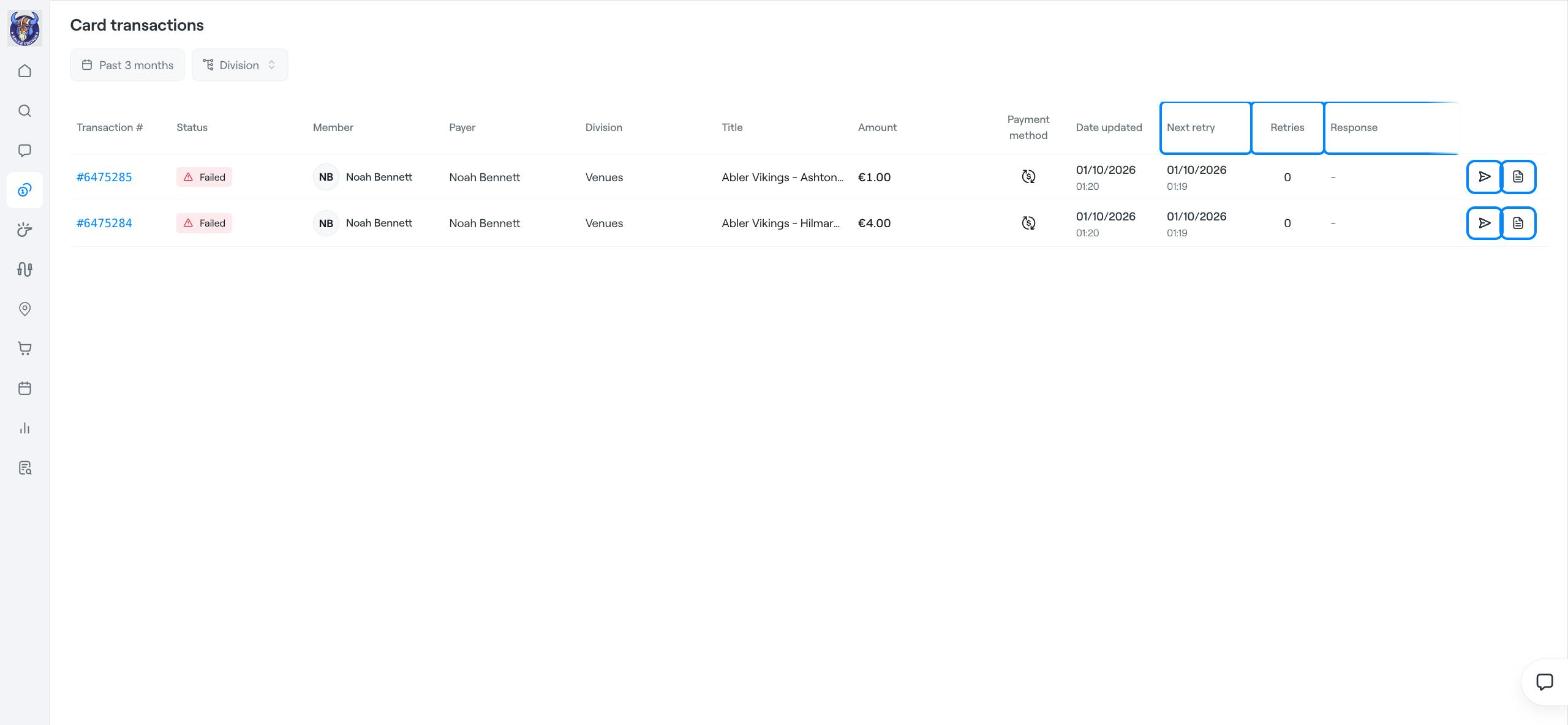
Click the Message icon (paper plane) at the end of the row to send the payer a message, for example asking them to update their card in the Abler app.
Click the View invoice icon to open the invoice. From there you can, for example, add a payment manually if the member pays another way. See Add a payment to an invoice manually.
Askja retries the payment automatically. If the member updates their card, the next retry uses the new card. You can also find invoices with failed payments in Finance → Invoices by filtering on the status Failed.
Most failed payments are fixed when the member updates their card. A short, friendly message usually works best.
Invoices in Askja: find, filter and manage invoices
Add a payment to an invoice manually (cash, bank transfer or credit)
Installment Plan – Failed Card Charge