Add a member and invite them to Abler
Loading…
Most members join by registering in your shop, but you can also add members yourself, for example a new player who joins mid-season. You can then invite them to create an Abler account so they get events and messages in the app.
Example: a new player, Emma, joins the U12 group. You create her as a member, connect her parent as guardian and send an invite.
Go to Home → Members and click Add Member.
Under Members, search for the person by name.
Under Group, choose the group.
Click Add.
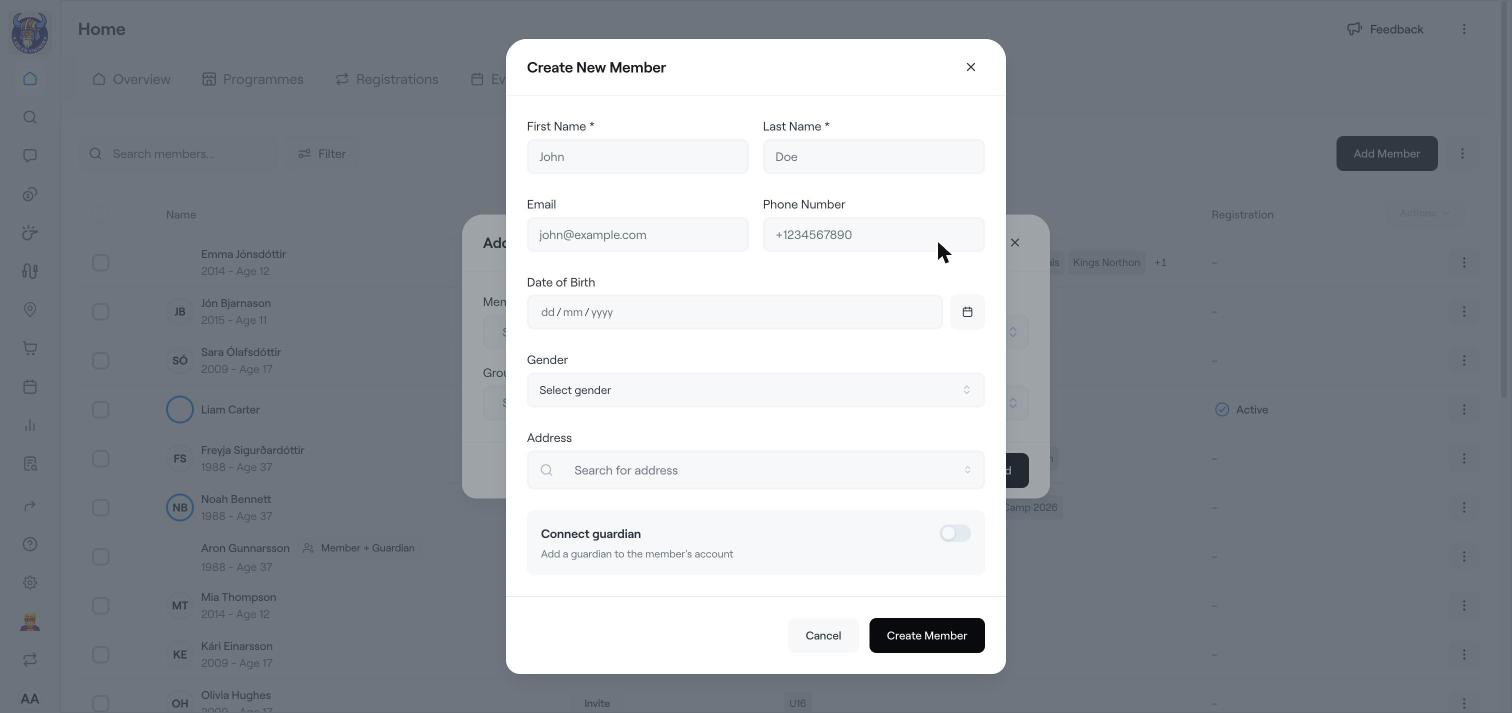
In the Add member to group window, click New member.
Fill in First Name and Last Name, and if you have them, Email, Phone Number, Date of Birth, Gender and Address.
For a child, turn on Connect guardian and add the parent or guardian.
Click Create Member, then choose the group and click Add.
Members without an Abler account show an Invite button in the members list. Click Invite to send them an invitation by email so they can create their account. When they accept, their status changes.
To add many players at once, see Add many players at once with Excel.
To register a member to a paid programme, see Register members to a programme.
Find members, guardians, invoices and more
The member overview page
Add many players at once with Excel