Move or add players to another group
Loading…
You can move players from one group to another, for example when they move up an age group, or add them to a second group while they stay in the first. You can do this for one player or many at once.
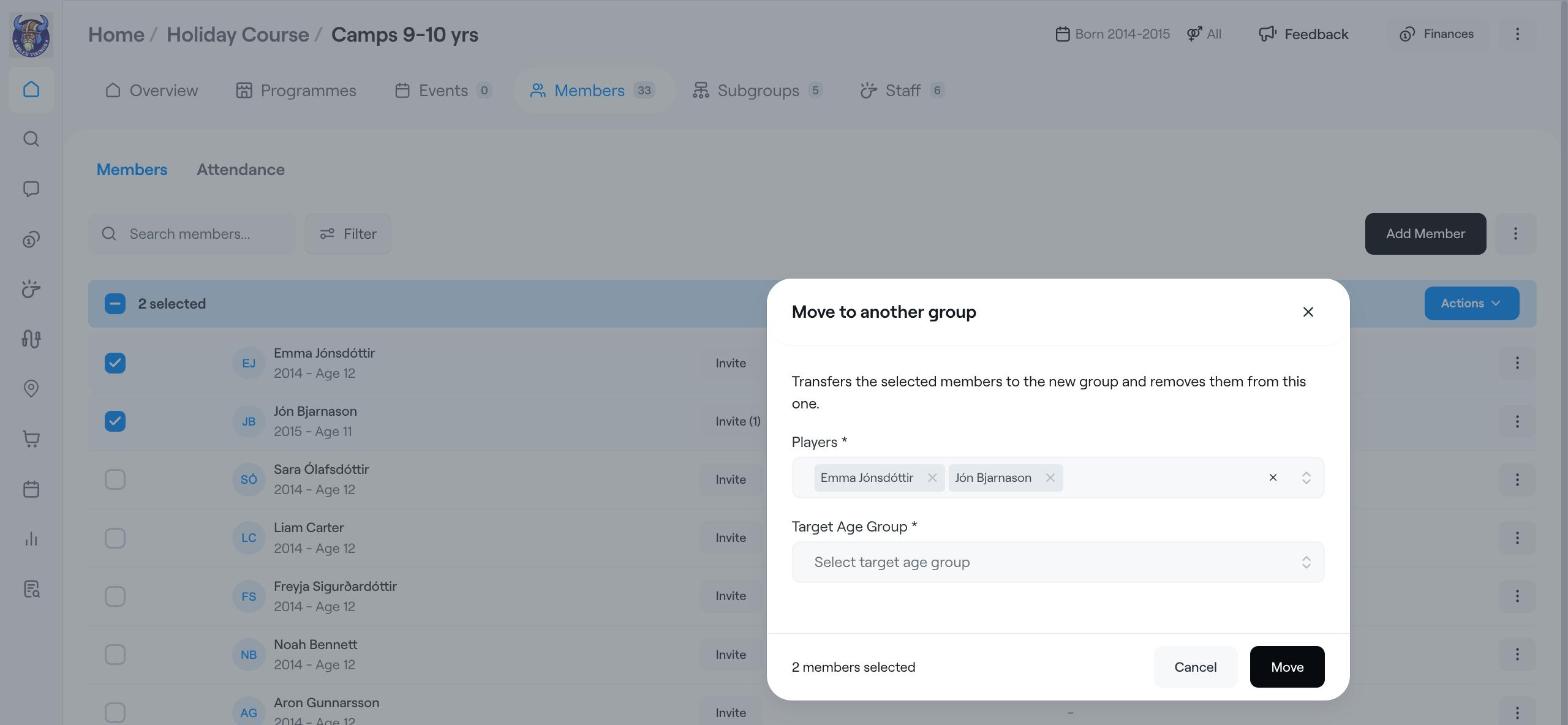
Example: Emma Jónsdóttir and Jón Bjarnason are moving from Camps 9-10 yrs to Camps 11-12 yrs.
Move to another group: the players join the new group and are removed from the current one.
Add to another group: the players join the new group and also stay in the current one.
Go to Home → Groups and open the group the players are in now.
Open the Members tab.
Tick the box in front of each player you want to move. A blue bar shows how many are selected.
Click Actions on the right.
Choose Move to another group or Add to another group.
Check the Players list. You can remove anyone you selected by mistake.
Under Target Age Group, choose the group they should join.
Choose the subgroups they should join in the new group, if asked.
Click Move (or the confirm button for adding).
Send message or Message family.
Create Subgroup from the selected players.
Remove the players from the group.
Moving a player to another group does not change their registrations or invoices. If the player should also be in a different programme option, see Move a member to another option (workaround).
Groups (Create, edit & delete)
Move a member to another option (workaround)
Add many players at once with Excel