Create a service (course)
Loading…
This article is for the Classic admin system. If your club uses the new admin platform, see the "Admins – new platform" section.
This article covers how to create a course in Sportabler.
1. Click on Service overview in the left-hand menu, then click create and Create service
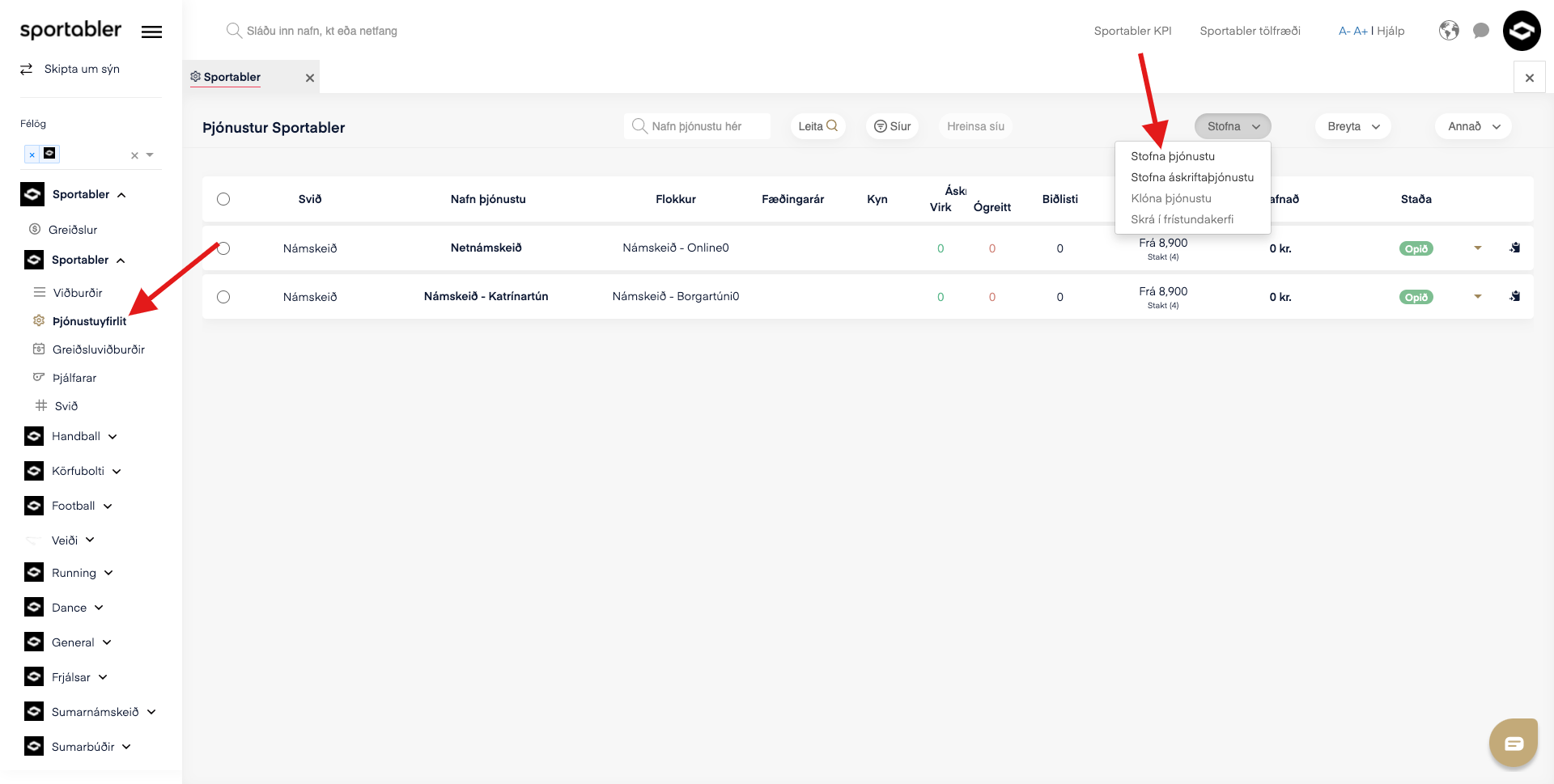
2. A form like this will open, which needs to be filled in.
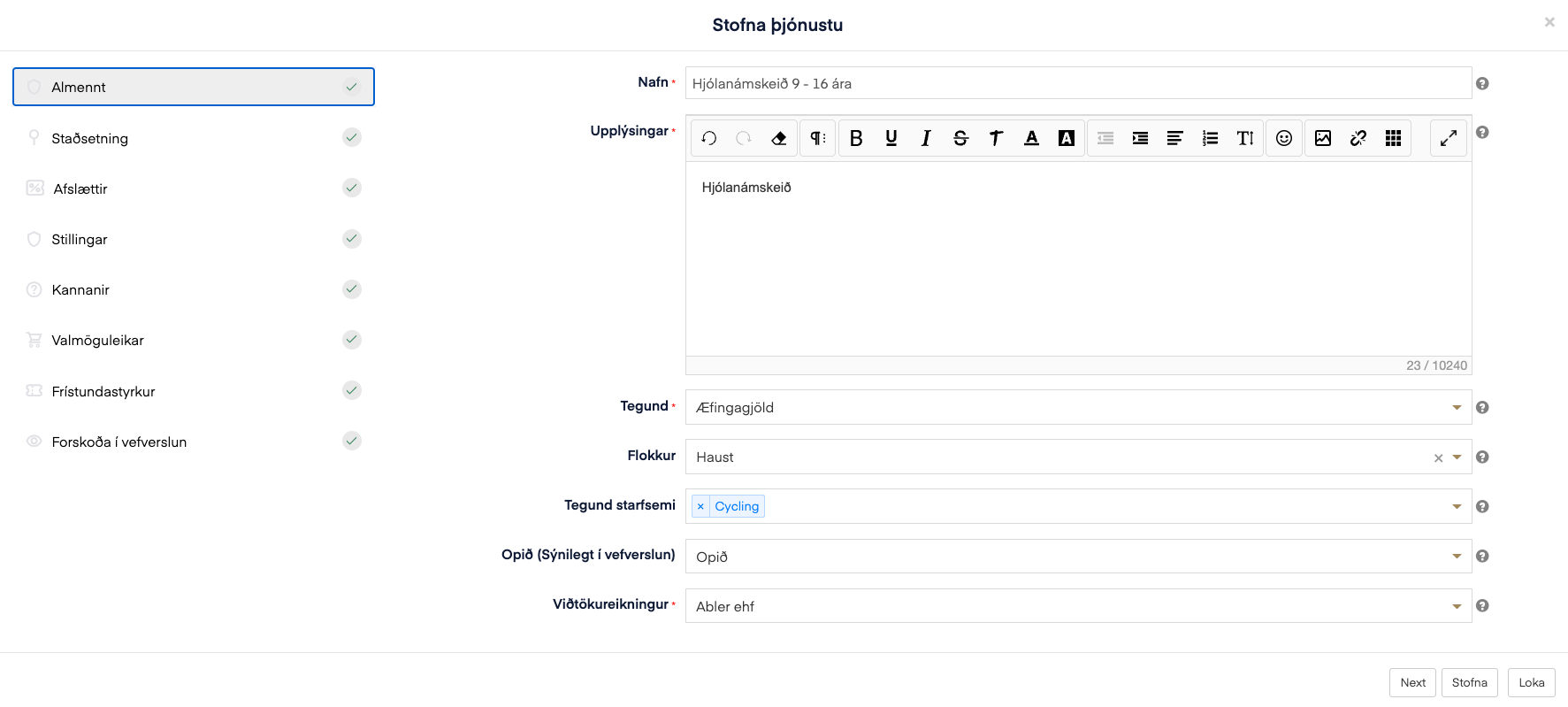
Name: Cycling course 9 - 16 years old - This title appears in the web shop.
Information: This is where you enter a description of the course.
Type: The type of service, e.g. course or membership fee
Category: Autumn (Create category) - This means that everyone who buys the course is placed in a category called Autumn
Activity type: If nothing applies, choose "other", but in this example it is cycling.
Gender: This is where you select the gender
Open (Visible in web shop): Whether you want the course to be visible in the web shop or not
Receiving account: Choose the correct receiving account.
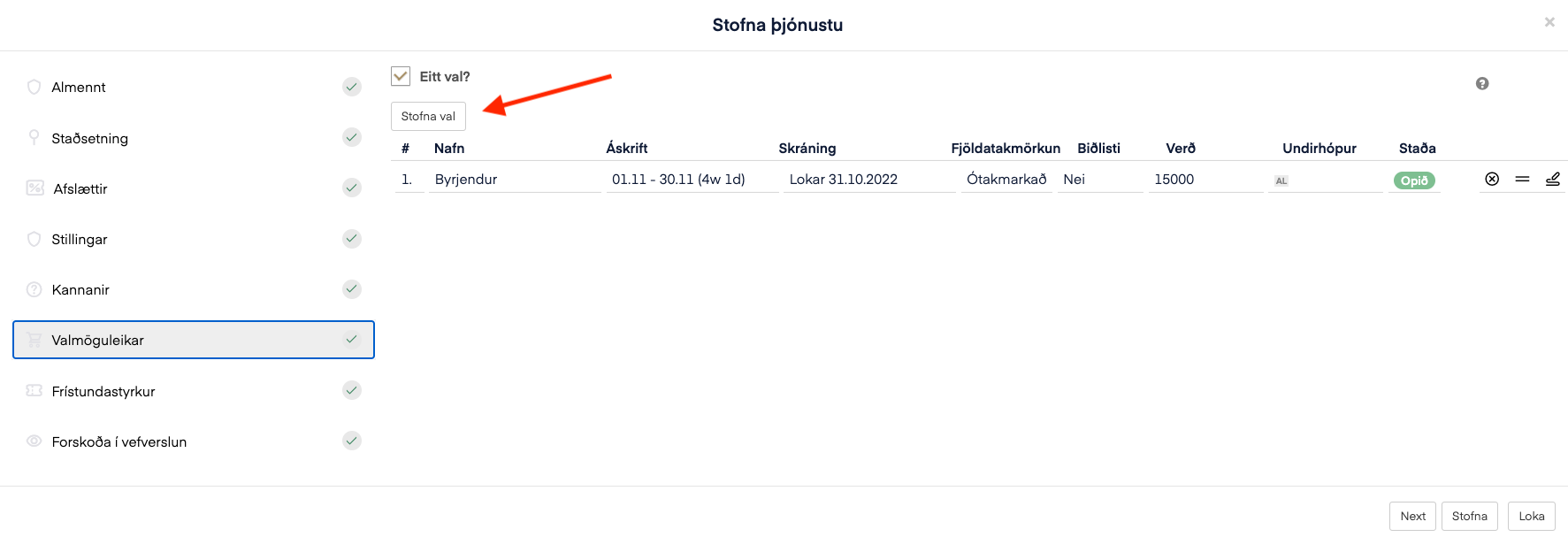
This is where you enter the options available to the buyer. You can have several options, e.g. one option is beginners and another is advanced, etc.
Single choice: If single choice is checked, the buyer can only choose one option. The options are found under the service's options.
- Cannot be changed afterwards
- NOTE: Single choice must be checked if you offer a leisure grant.
- Leisure grant: If you check this, a leisure grant is linked to the course.
- If you are selling, for example, a summer course with several weeks on offer, it is better to not check single choice.
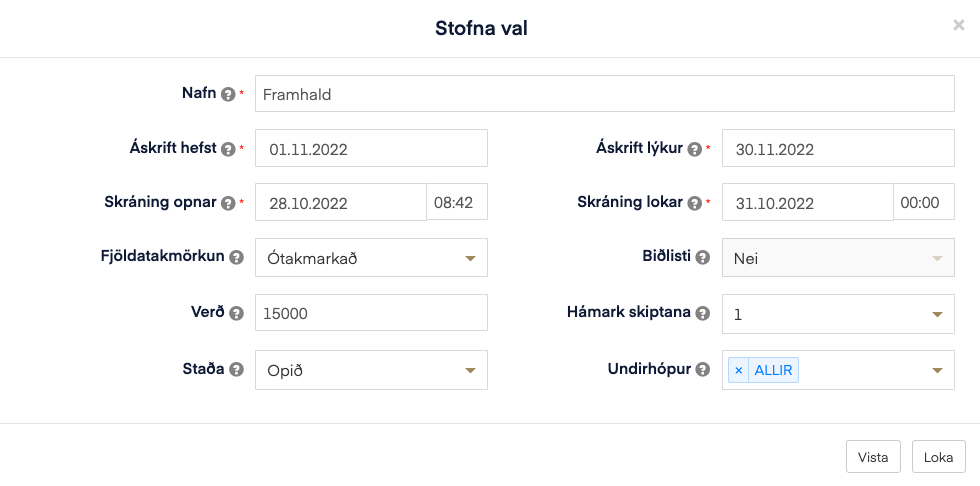
Name: This is the name of the option.
Subscription starts: When the course starts
Subscription ends: When the course ends
Registration opens: When registration opens. The course appears in your web shop when registration opens.
Registration closes: When registration closes, the course disappears from the web shop
Capacity limit and waiting list: You can set a capacity limit and a waiting list. See a more detailed explanation here: Capacity limit and waiting list
Price: This is where you enter the price of the course.
Maximum instalments: This means payment plan. How many times the buyer may split the payment.
Status: This means you can have open, hidden, and archived. Open means it is visible in the web shop. Hidden means it is not visible in the web shop. Archived means you are deleting this option.
Subgroup: This is for those using Sportabler's communication tool. In this example, I chose create new group and named the subgroup beginners. This means that everyone who buys the Beginners course is automatically placed in a subgroup on the coach's side called beginners.