Registering members for a service
Loading…
This article applies to the older admin system (Classic). If your club uses the new admin system, see the "Admins – new platform" section.
You can watch the video at the bottom of the page showing how to register a member for a service.
As an admin, you can register members for a service. You can search for members in the system or create new ones. You can choose how often the subscription should renew and whether to give the member a discount. Once a member has been registered for the service, an invoice is automatically created in the system.
To register a member for a service:
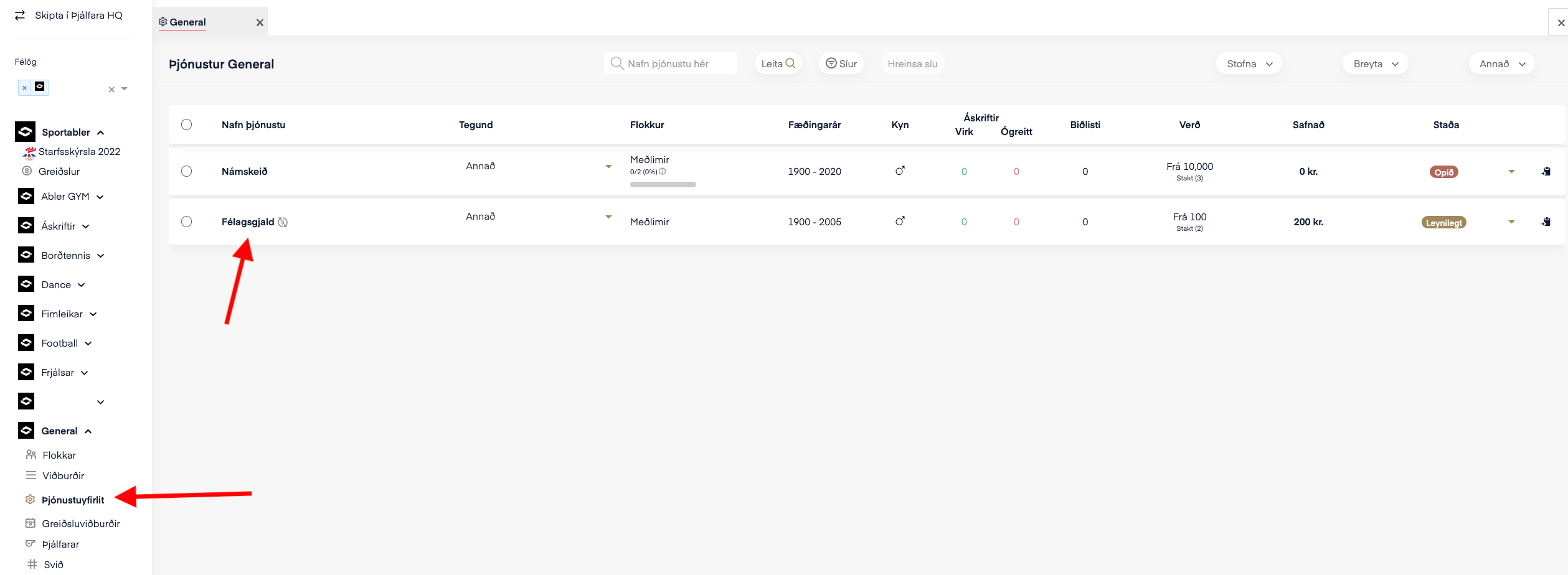
Select Service overview in the left-hand menu in Admin HQ.
Select the course the member wants to register for.
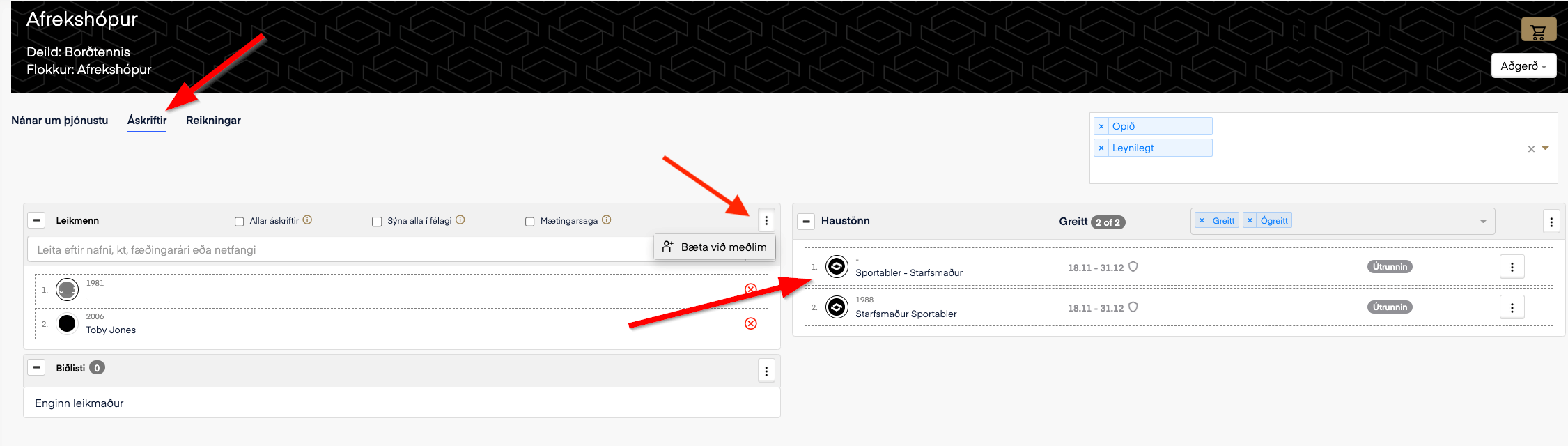
Select the Subscriptions tab and find the relevant member in the list. If it's a new member, click the three dots at the top of the member list, select Add member and fill in the required information. For more details on how to add members, see Add/remove a member from a group.
NOTE. Make sure to register the member themselves, not the guardian/payer.
Drag the member over to the appropriate service option on the right side of the screen.
A window will open. If the member is entitled to a discount, you can specify it here before continuing. You must enter an explanation for the discount in the comment field. The explanation will be saved with the subscription and is not visible to the payer.
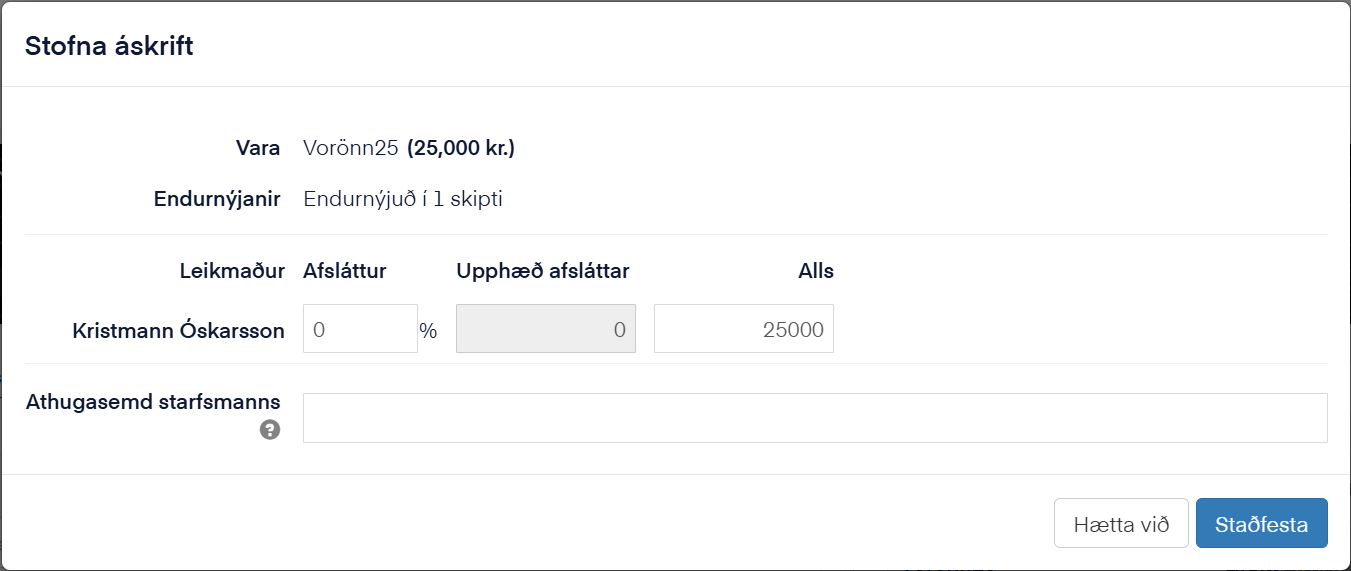
NOTE. If the person is not meant to pay, it's best to enter a 100% discount.
Once registration is complete, an invoice will be created in the member's Abler account, ready to be paid by the member or guardian. For more details on how to pay for a registered member, see Pre-registered members (Paying training fees).
If you want to create a payment slip, see Create a payment slip.
If a member has paid by bank transfer or cash and you want to mark this in the system, see Mark a member as paid.
Video showing step by step how to register members for a service: