Create a service with or without leisure grant
Loading…
This article is for the Classic admin system. If your club uses the new admin platform, see the "Admins – new platform" section.
To create a service that offers a leisure grant, you first need to familiarize yourself with the rules of the relevant municipality. The requirements vary:
In Reykjavík, the service must last at least 8 weeks.
In Kópavogur, the service must last at least 10 weeks.
This means that the "Subscription starts" and "Subscription ends" dates must cover these minimum requirements.
NOTE: You also need to check "Single choice" under the options so that a leisure grant can be attached to the service.
Once a service has been created with a leisure grant, it cannot be changed. If changes are necessary, you need to:
Set the service to "Hidden" and select the circle and clone the service to create a new one. The service that was set to hidden can then be deleted. See here: Clone service.
Before creating a service, it's important that a category has already been created. See: Create category
Go to Service overview.
This opens an overview of all services that are available or have been available. By clicking on filters, you can choose which courses you want to view. Under "Status" on the far right, you can filter by:
Open: The service is visible in the webshop.
Hidden: The service is hidden in the webshop. However, members can be registered so that they or their parents receive an unpaid invoice in Abler. See here:
Archived: The service is no longer active and cannot be reactivated.

Step 1: Click "Create" and select "Create service"
Example: Create a course
Name: Course
Information: Description of the course
Type: Select e.g. course or membership fee
Category: It's important to select the correct category so that participants are placed in the right group.
Activity type: If nothing applies, select "Other". In this example: "Youth work"
Open: Check this if the service should appear in the webshop.
Recipient account: Choose the correct bank account (can be found under Categories > Other > Recipient accounts)
Step 2: Fill out the options
Single choice: Check this if the buyer should only be able to select one option. Necessary if the service is to accept a leisure grant.
Options (example):
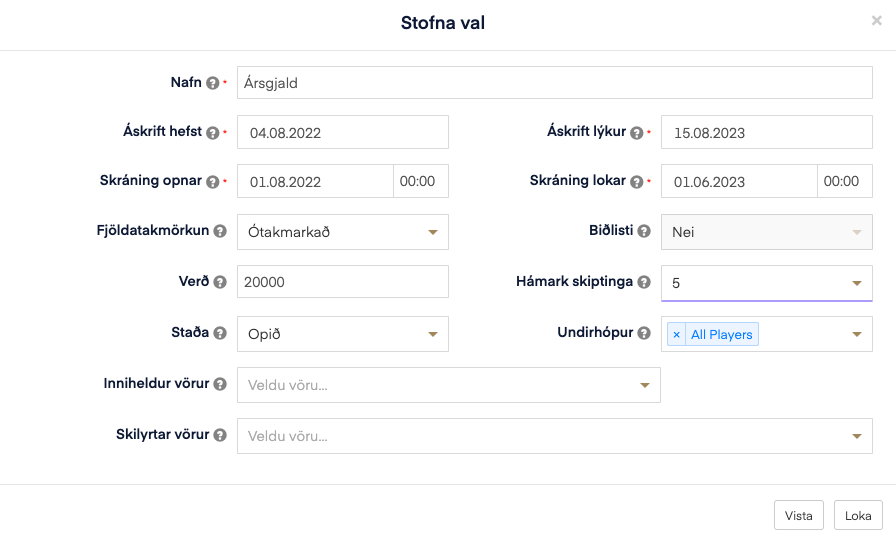
Name: Course 1
Subscription starts: Start of the service
Subscription ends: End of the service (make sure it covers 8 or 10 weeks if a leisure grant applies, depending on the rules)
Registration opens/closes: When registration opens and closes
Participant limit: If there is a maximum number of participants available
Waiting list: Can be enabled if the course fills up
Price: Total price of the service
Maximum installments: Payment can be split into up to 12 installments
Status: Open = Visible in the webshop
Subgroup: The group the participant is placed in after purchase (e.g. "ALL")
Once a service has been created, you can use clone to create a similar service with different periods (e.g. autumn/spring).
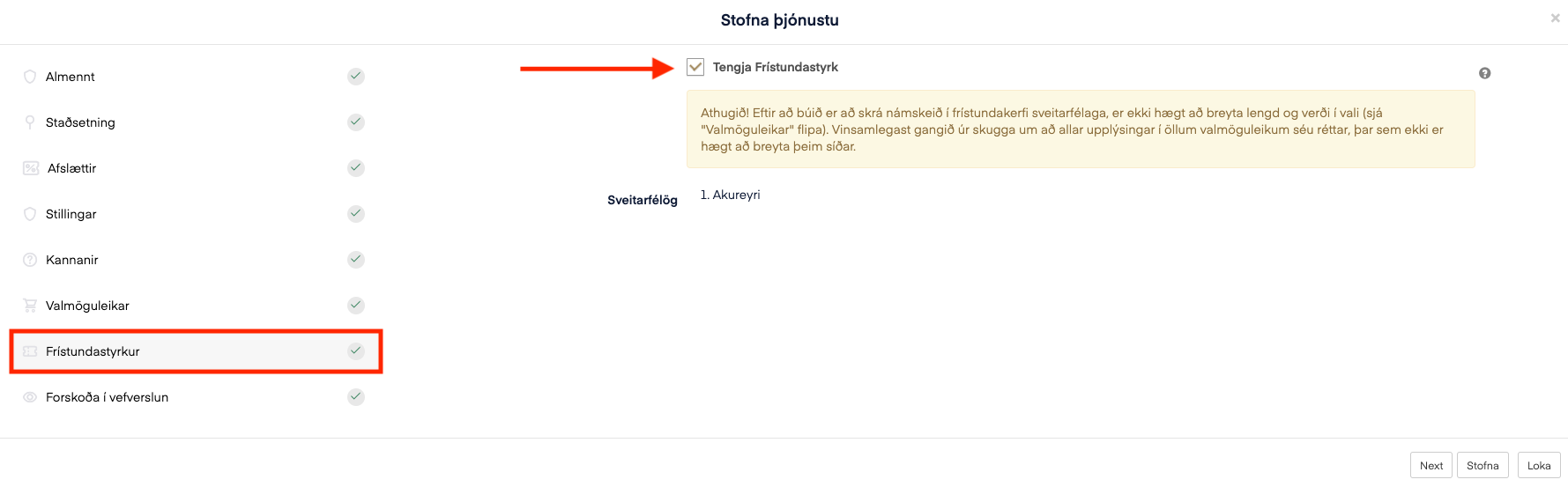
Check "Allow leisure grant" if the club offers a grant.