Create a service (participant fees)
Loading…
This article is for the Classic admin system. If your club uses the new admin platform, see the "Admins – new platform" section.
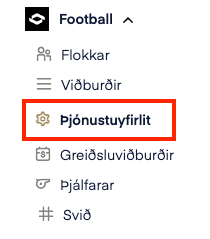
To create a service for your club, click on service overview
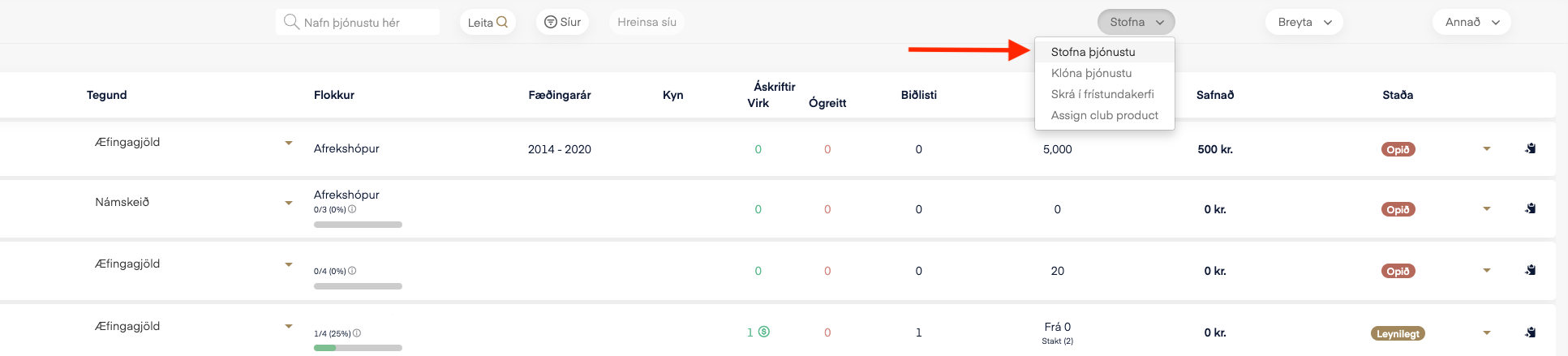
This opens a view showing all services that are currently available and have been available before. By clicking on filters you can choose which course you want to view. Under status, furthest to the right, you can filter what is visible in the web shop and what is not.
Open: The service is visible in the web shop
Hidden: The service is not visible in the web shop
Archived: If you want to delete the service. All information about a service that has been archived can still be accessed, but the service cannot be put back on sale.

To create a service, click on create and select create service
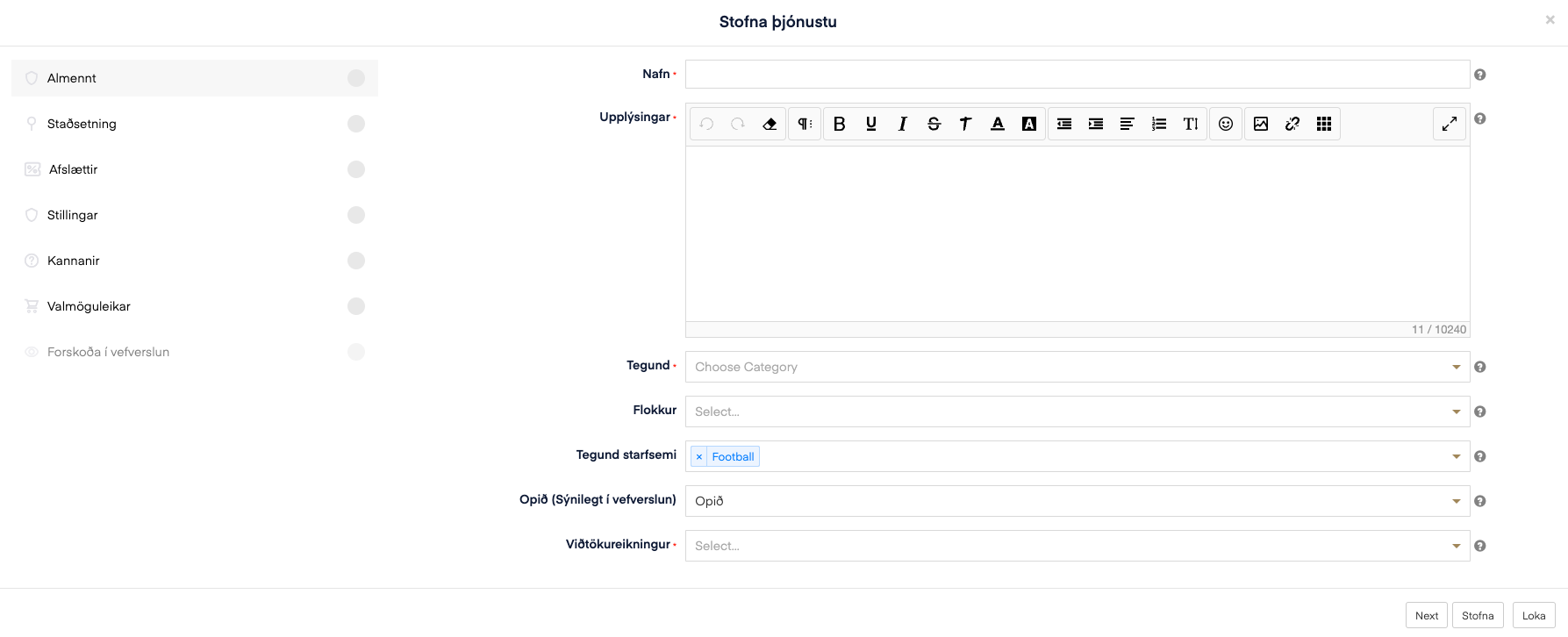
In this example, training fees are being created for the men's 4th division in football at the Sportabler club, where the options offered will be autumn term, spring term and full year. A leisure grant is also enabled, along with a sibling discount.
A discount profile is created elsewhere and is then attached to each service (see the article on discounts: Discounts)
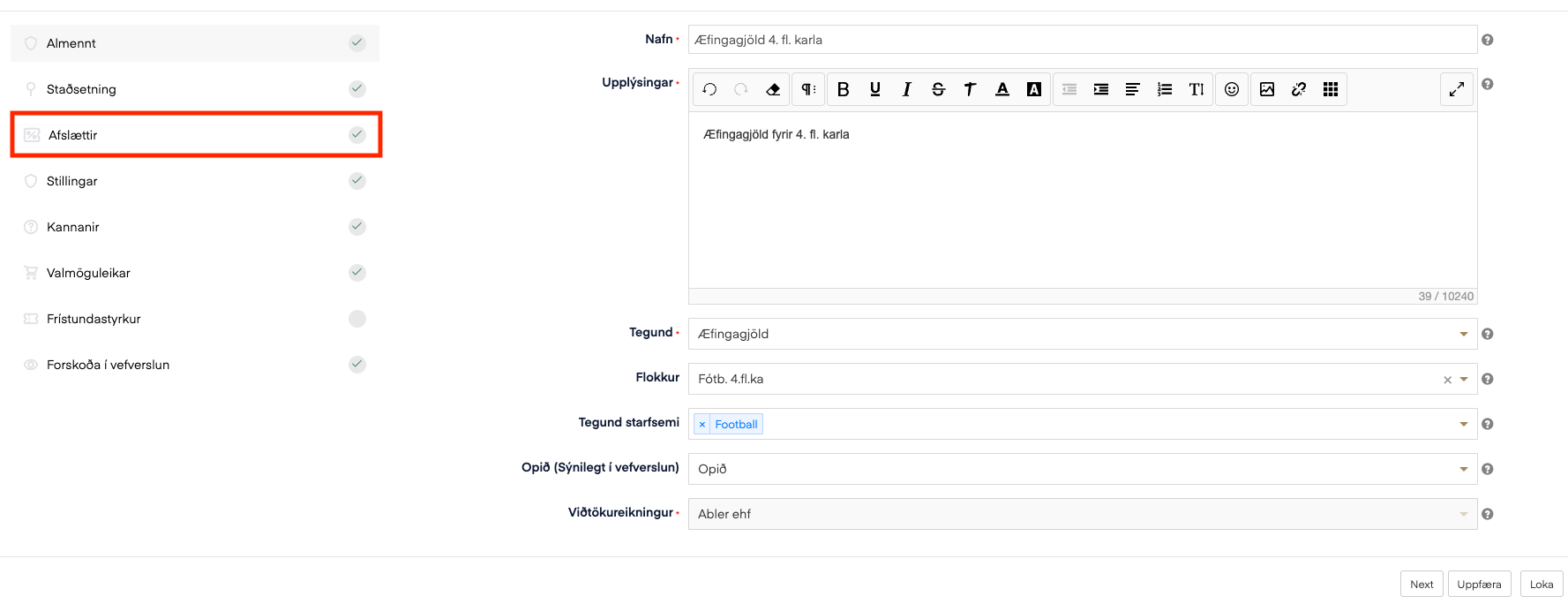
Name: Training fees men's 4th division – This name is shown in the web shop.
Information: Here you enter a description of the course and any details you want to include.
Type: The type of the service, e.g. course or membership fee
Category: It is important to select the correct category. In this case it is important to select Football men's 4th division so that participants end up in the right category. It is also important that you first carry out a category update if applicable, see here: Category update
If a category is missing, you can create one (here are instructions on how to create a category)
Activity type: If none apply, select "other", but in this example it is Football.
Open (Visible in web shop): If "Open" is selected, it means the service is visible in the web shop. This can be changed after the course has been created.
Recipient account: Make sure the correct account is selected. You can see a list of recipient accounts by clicking on categories and selecting other furthest to the right, then clicking on recipient accounts.
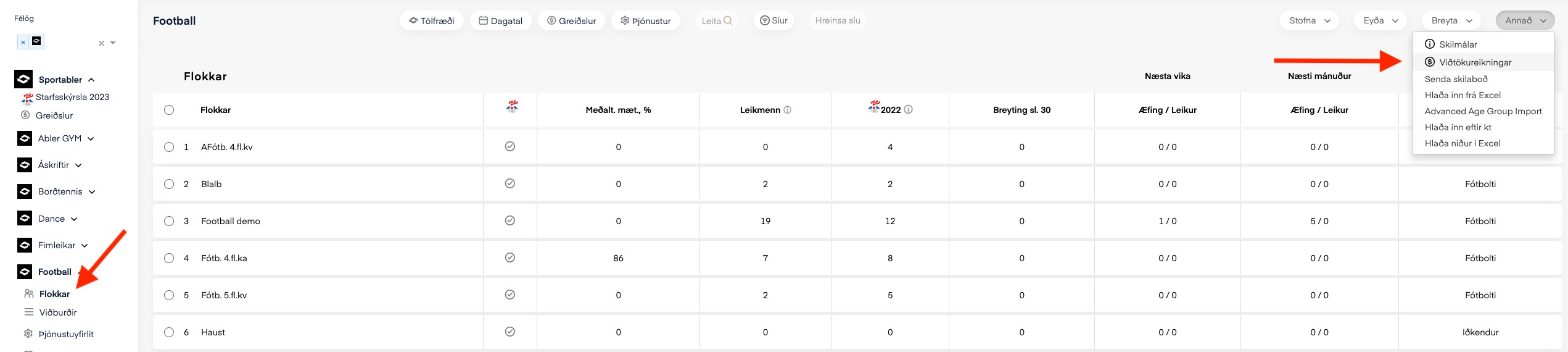
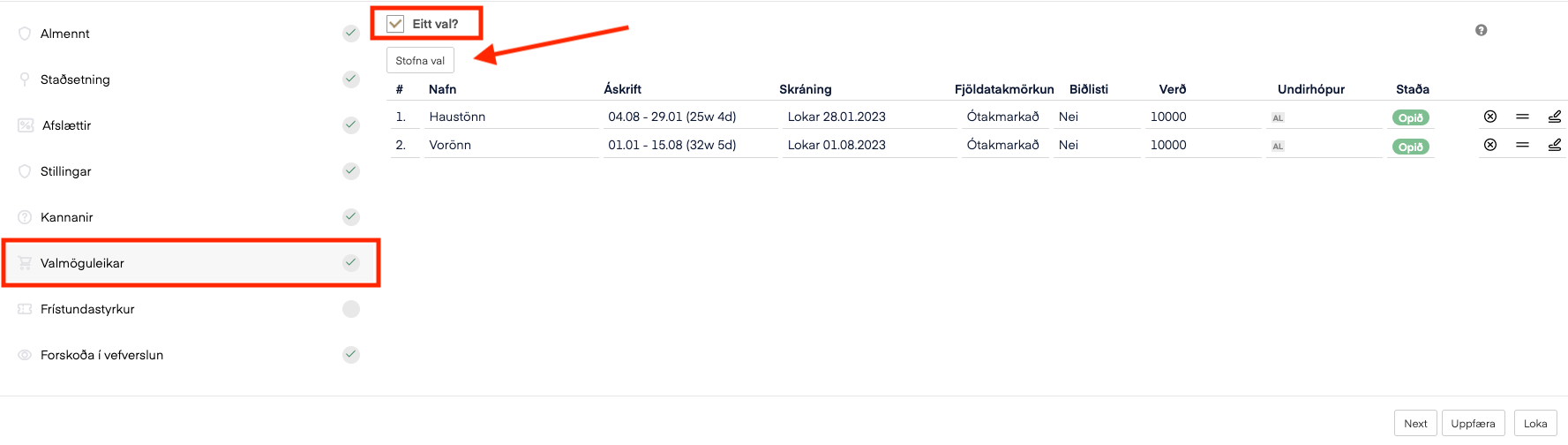
Single choice: If you check single choice, it means the buyer can only select one option. In this example, autumn, spring and a full-year fee are offered, so the buyer can only choose one of these three options. On the other hand, if single choice is not checked, the buyer can select more than one option.
NOTE: Single choice must be selected if you are offering a leisure grant.
These are the options that appear in the web shop, and since I checked single choice above, the buyer can only select one of these three options to purchase. If single choice is not checked, the buyer can select all options.
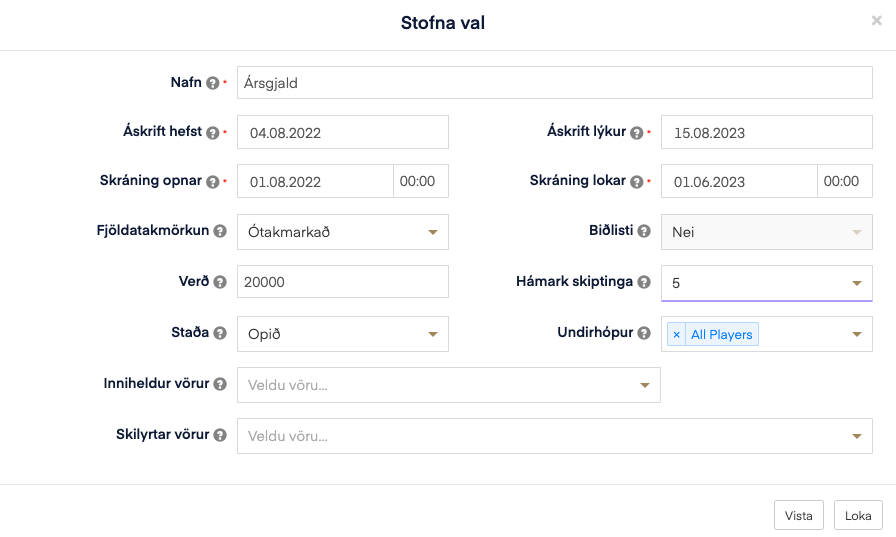
Name: Annual fee
Subscription starts: Indicates when the service begins
Subscription ends: The date on which the subscription ends
Registration opens: When registration opens in the web shop
Registration closes: When the registration deadline ends. Once the registration deadline has passed, the service disappears from the web shop.
Capacity limit: If there is a specific capacity limit, you can select it here
Waiting list: If you want to offer a waiting list, select yes.
Price: Enter the price here.
Maximum number of installments: This is essentially payment in installments. You can select up to 12 months.
Status: Open means it is visible in the web shop, and closed means it is not visible anywhere except in your admin dashboard.
Subgroup: This is the group the participant is placed in after the service has been purchased. We recommend setting this to ALLIR or All Players if it concerns a team sport such as football.
Once I have created the annual fee, I can go to the = sign, and the exact same information will appear on the next line, but it is important to change all the details, such as name, price, subscription period, maximum number of installments and registration deadline, since these are different for the autumn term compared to the annual fee.
Leisure grant: If the leisure grant option is checked, buyers can use a leisure grant for the purchase. Leisure grants are pre-linked at Sportabler.
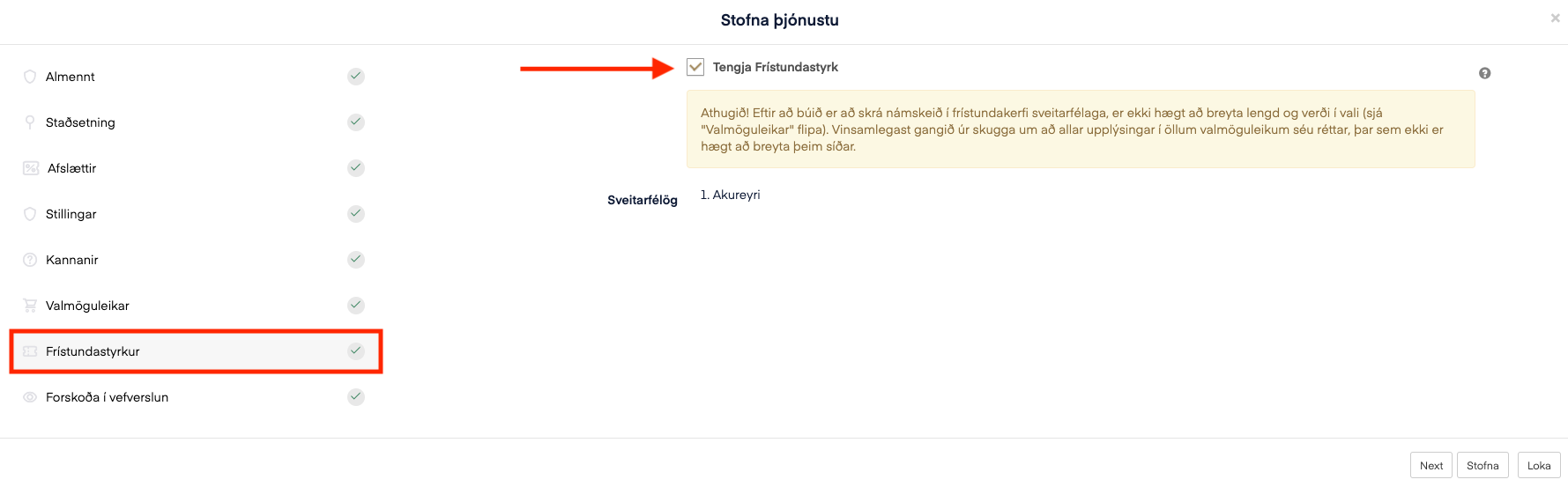
To link a leisure grant to a recipient account (this only needs to be done the first time): To enable grants, you need to contact Sportabler and make sure the correct municipalities are linked to the club.
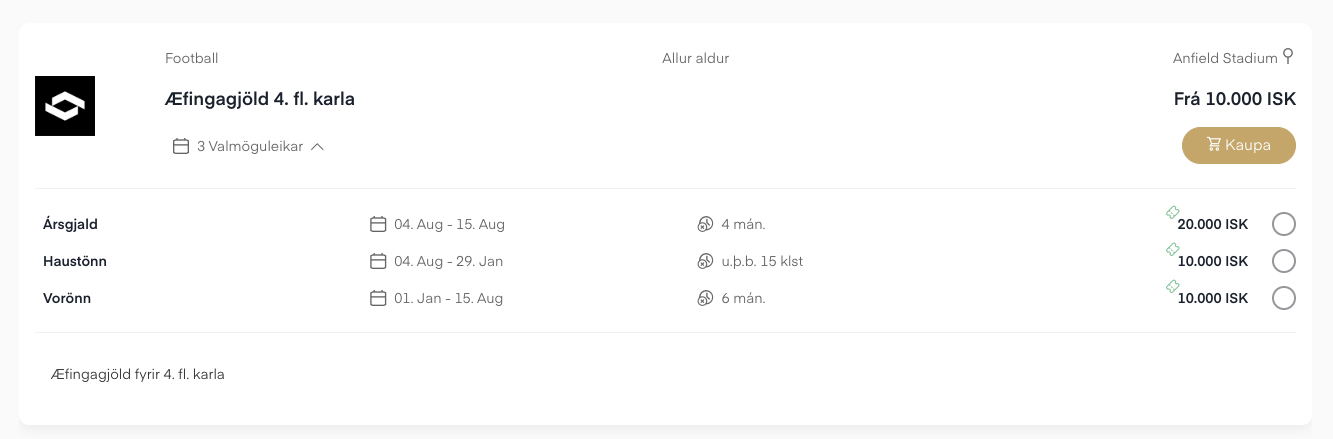
This is what the service looks like in the club's web shop. The club's web shop address is www.sportabler.com/shop/"nafnfelags" e.g. www.sportabler.com/shop/sportabler