Set up a venue
Loading…
With Venue Booking, customers can book your pitches, courts, halls and other facilities online and pay in advance. This article shows how to set up a venue step by step.
Example: you want to rent out your two padel courts by the hour, Monday to Sunday from 09:00 to 22:00.
Click the venue icon (map pin) in the left menu to open Venues Booking, and open the Venues tab.
Click New venue and choose Start from scratch (guided setup with sensible defaults).
The setup has five sections on the left. A live Preview on the right shows how the venue will look to customers. At the bottom, Askja shows how many required sections are complete.
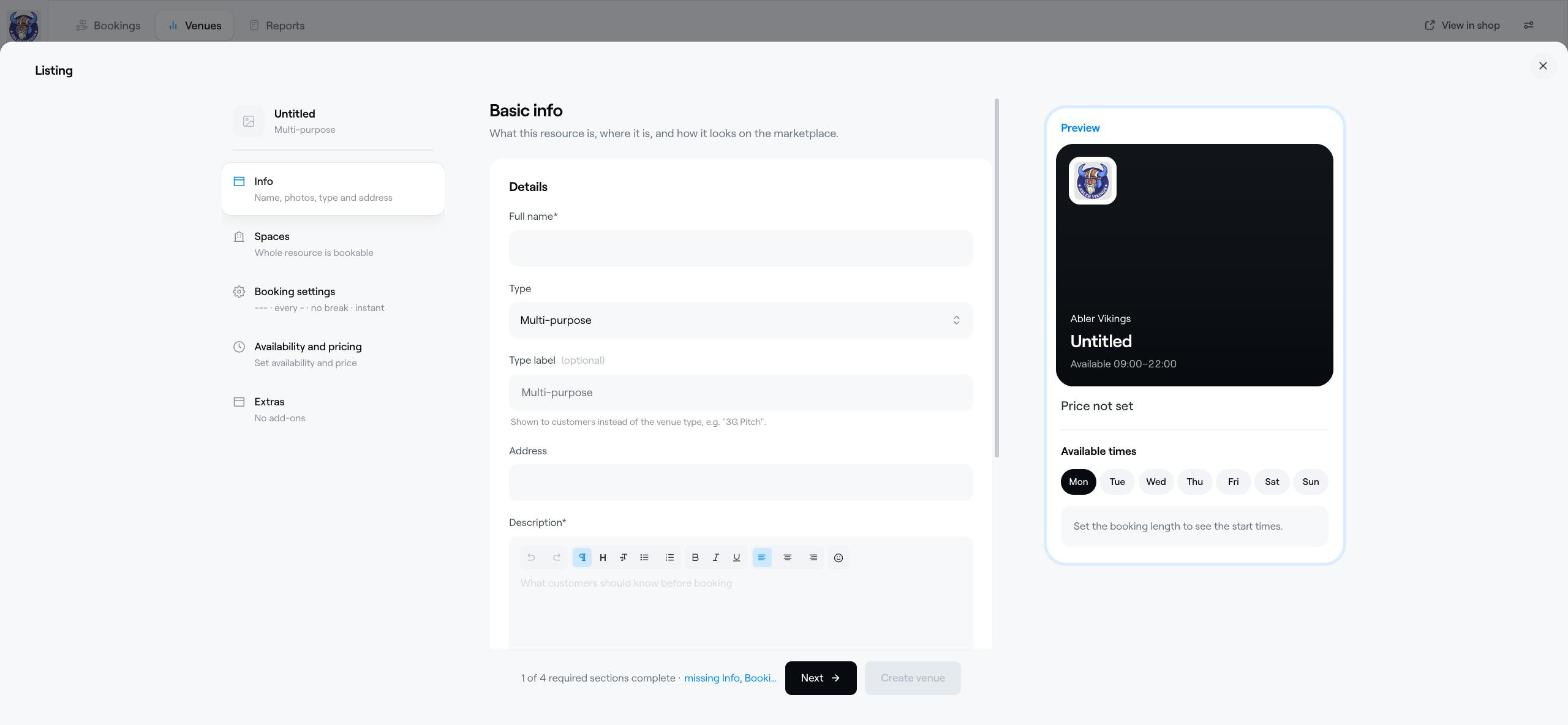
Full name of the venue.
Type, for example Padel Court, Football Pitch, Indoor Hall or Meeting Room. Use Type label to show your own name to customers, for example "3G Pitch".
Address and Description: what customers should know before booking.
Photo album: up to 8 photos.
Payout account: where payments for bookings at this venue are paid out.
By default the whole venue is booked as one unit. If parts of it can be booked separately, for example court 1 and court 2, click Add space for each one. You can also set the maximum number of guests.
Booking slots: the Slot length (for example 1 hour), how often Slots start (for example every 30 min), the Longest booking, and an optional Break between bookings for cleaning up.
Booking window: how far ahead customers can book, and the Minimum notice before a booking starts.
Booking confirmation: Instant booking, or Approval required where you review each request and the customer is not charged until you approve.
Who can book: Anyone, or Club members only (customers sign in and join the club before they pay).
Cancellation policy: free cancellation until a set time before the booking, or no cancellation.
Availability: the opening hours for each day. Use Add hours for split hours, and Add special hours for closed days, different hours or hours reserved for members.
Default price: choose Price per booking (one booking takes the whole slot) or Price per person (several bookings can share a slot), then enter the price per slot and the VAT. Prices include VAT.
Price rules: change the price for certain times, dates or members, for example a peak-time price in the evenings or a lower price for members.
Click Add extra to offer add-ons with a booking, for example racket rental or balls.
When all required sections are complete, click Create venue. The venue appears on your club's venue page, which you can open with View in shop.
Start with Approval required if you are new to online booking. You can switch to Instant booking later.
Venue booking: the bookings calendar
Add Venues