Manage bookings in the calendar
Loading…
The bookings calendar shows every venue booking and club event in one place. From here you can see what is booked, create bookings for customers and move bookings to another time.
Example: a customer phones to book a padel court on Friday at 18:00, and later asks to move it to 19:00.
Click the venue icon (map pin) in the left menu to open Venues Booking. The Bookings tab opens on the current week.
All, Bookings or Events: show venue bookings, club events (trainings, matches), or both.
Venues: on the left, tick the venues you want to see. Click the arrow next to a venue to show its spaces, for example individual courts.
Use the small month calendar to jump to a date, or Today and the arrows.
Search bookings… and Filter to find a specific booking.
Combined: all venues in one calendar.
Per venue or Per space: one column per venue or space, useful for seeing free slots.
Day, Week or Month, shown as a List or a Calendar.
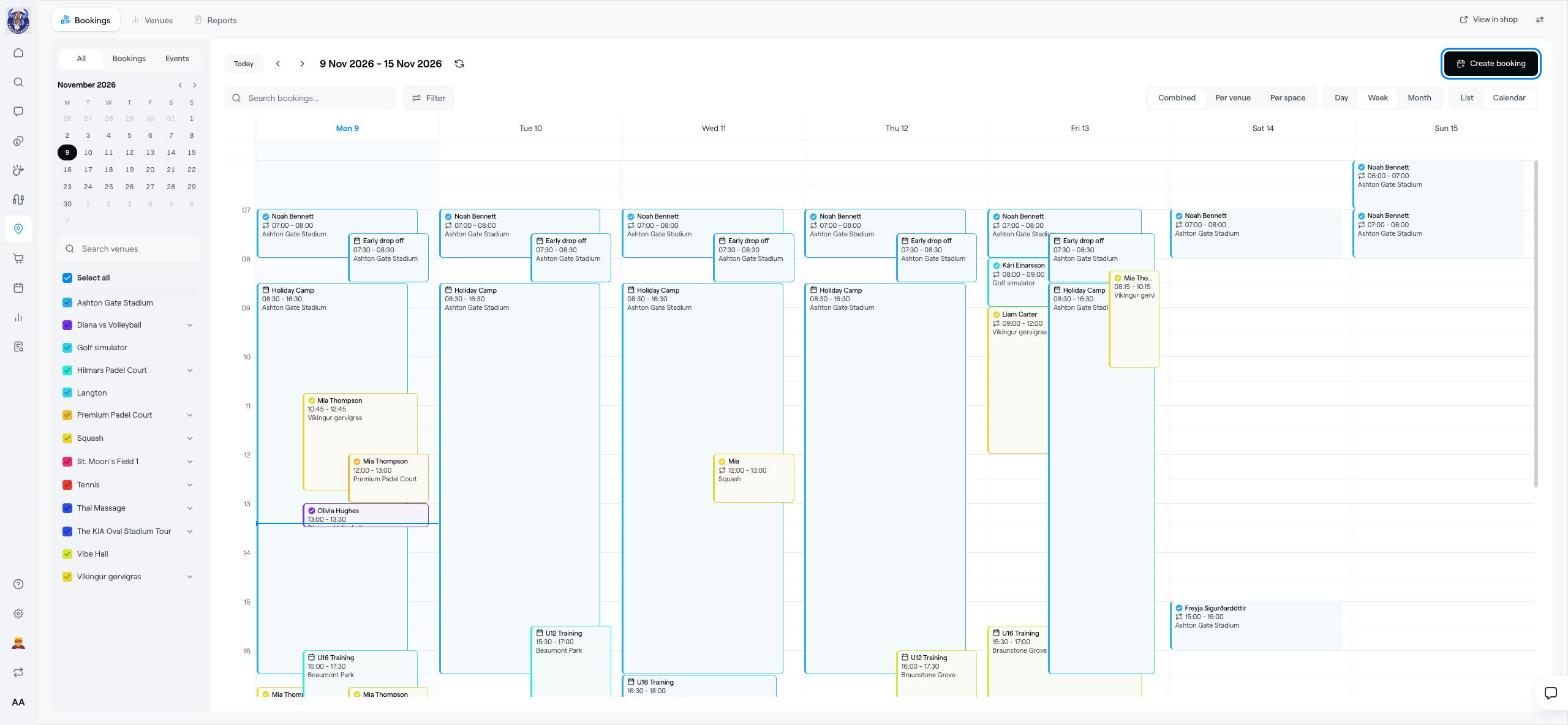
Click Create booking in the top-right corner.
Choose the venue (and space), the date and time, and the customer.
Choose whether the customer pays or the booking is free, and confirm.
Bookings you make here can cover several spaces at once, for example two courts for a tournament.
Drag the booking to a new time or space in the calendar. This also works for bookings that cover several spaces.
Click a booking to see its details, for example the customer, the time, the price and whether it has been paid.
Because club events also show in the calendar, you can quickly see if a pitch is already used for training before you accept a booking.
Set up a venue for online booking
The club schedule: see all events by venue