Import matches with AI
Loading…
With Import with AI you can create a whole season of matches at once from a fixture list you already have, for example a screenshot from the league website, a PDF, a CSV file from Torneopal or KSÍ, or an email from the league. Abler reads the list and fills in the matches for you to check before they are created.
Example: the league sends the autumn fixtures as a PDF. You drop the PDF in and get all twelve matches ready to check.
Open the group and go to the Events tab.
Click Create Event and choose Import with AI. You can also open it from Bulk Create Matches.
Choose one of these:
Drop files: a Screenshot, PDF or Excel or CSV file. You can add up to 10 files of up to 10 MB each. From Torneopal or other systems, download the CSV and drop it here, or add a screenshot of the games.
Paste the fixtures: paste a league email, a fixture list or a table. Any layout works.
If the source names your team differently from your club, enter the name under Your team's name in the source. Separate several names with commas.
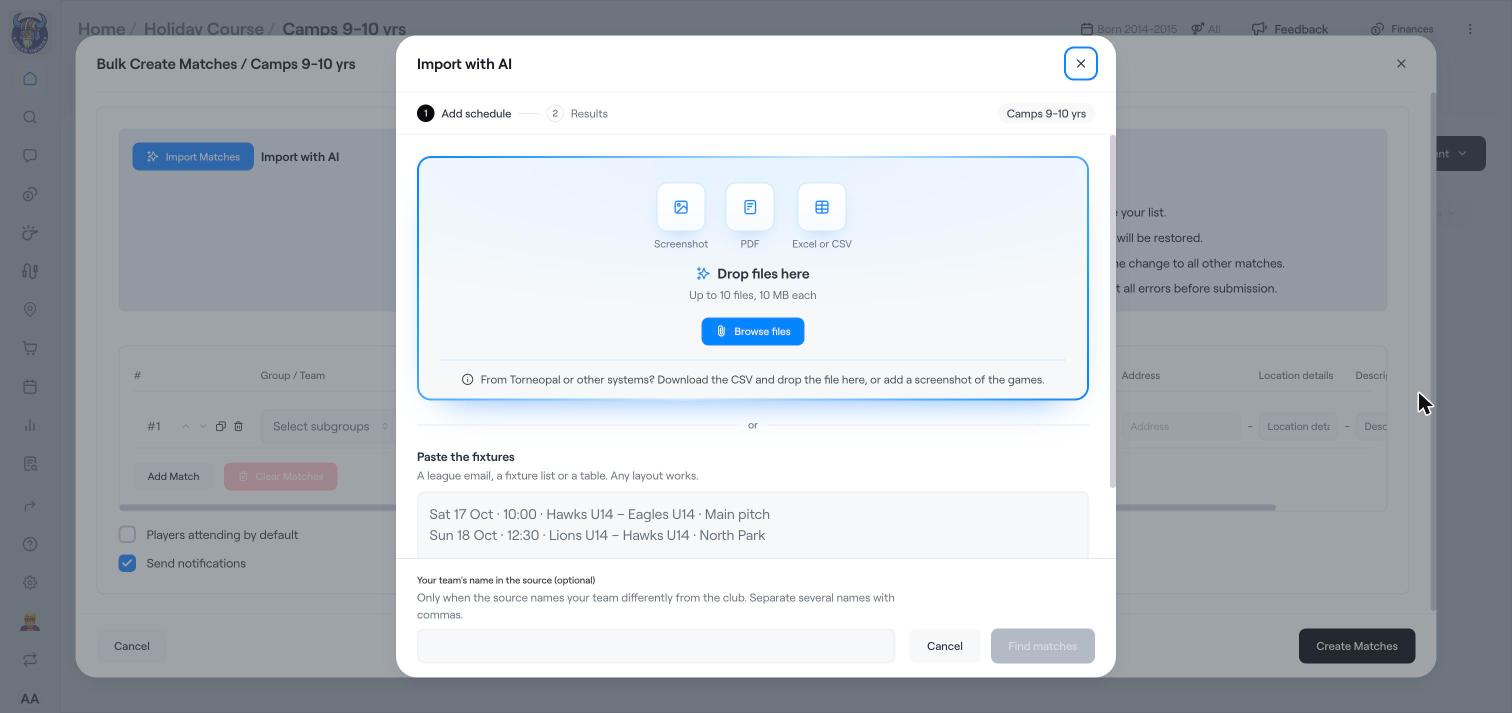
Click Find matches.
On the Results step, check each match: date, time, opponent, home or away and venue. Correct anything that is wrong.
The matches are added to Bulk Create Matches, where you can add subgroups and other details, and then click Create Matches.
Always check the dates and times before you create the matches. Players and guardians are notified when the matches are created, unless you turn off Send notifications.
Create multiple matches
Create a match
Edit, cancel or delete an event