Edit, cancel or delete an event
Loading…
You can change an event after it has been created, cancel it so participants are told it is not happening, or delete it completely. This works for trainings, matches, general events and classes.
Example: U16 training on Monday has to move from 16:00 to 17:00, and next week's session is cancelled because of the weather.
Go to Home → Events (or open a group and its events).
Find the event in the list. Switch between Day, Week and Month, or between List, Calendar and Timeline views, and use Filter to narrow the list.
Click the three dots (⋮) at the end of the event's row.
Choose Edit.
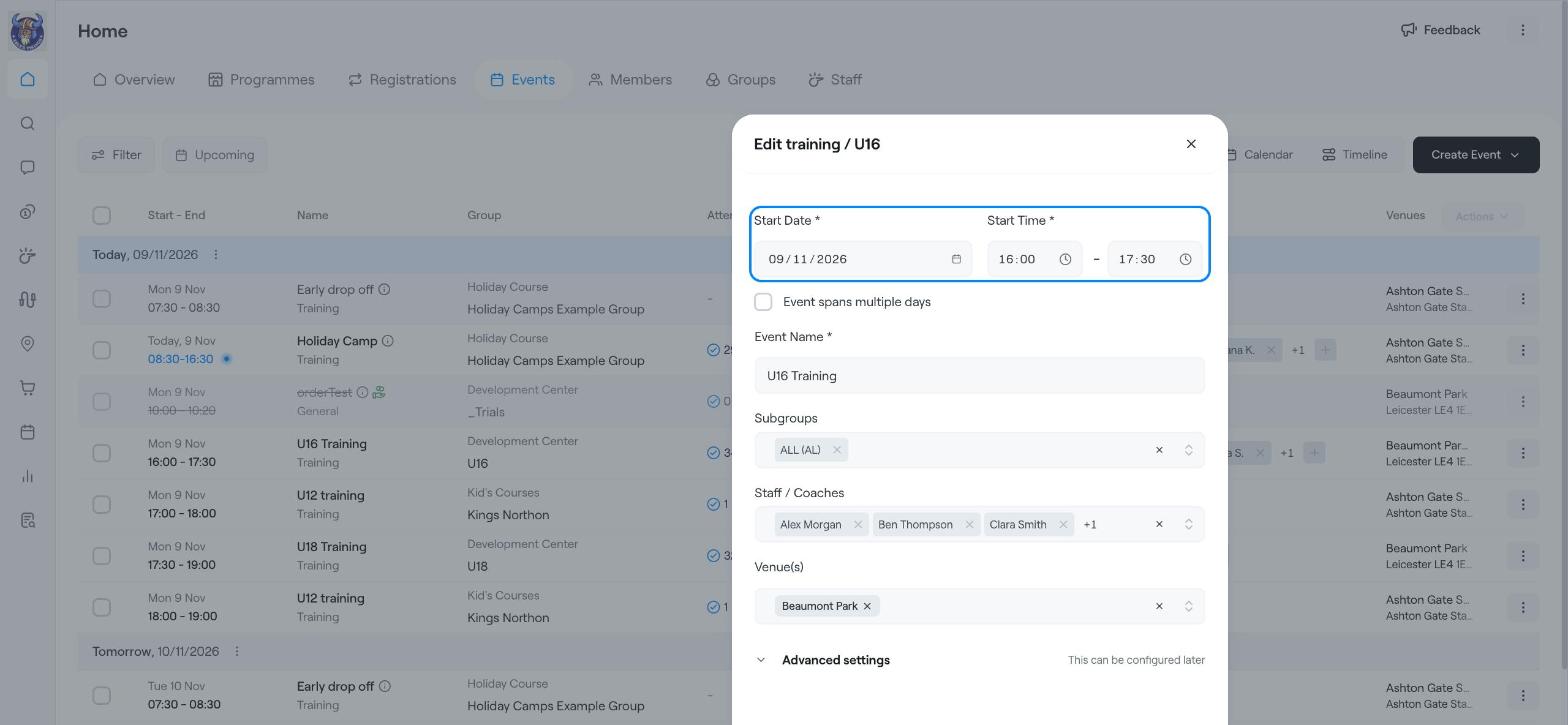
Change what you need: Start Date, Start Time and end time, Event spans multiple days, Event Name, Subgroups, Staff / Coaches or Venue(s). More options are under Advanced settings.
Click Update (for example Update training).
Cancel an event when it is not happening but you want participants to know. The event stays in the list, shown with a line through it.
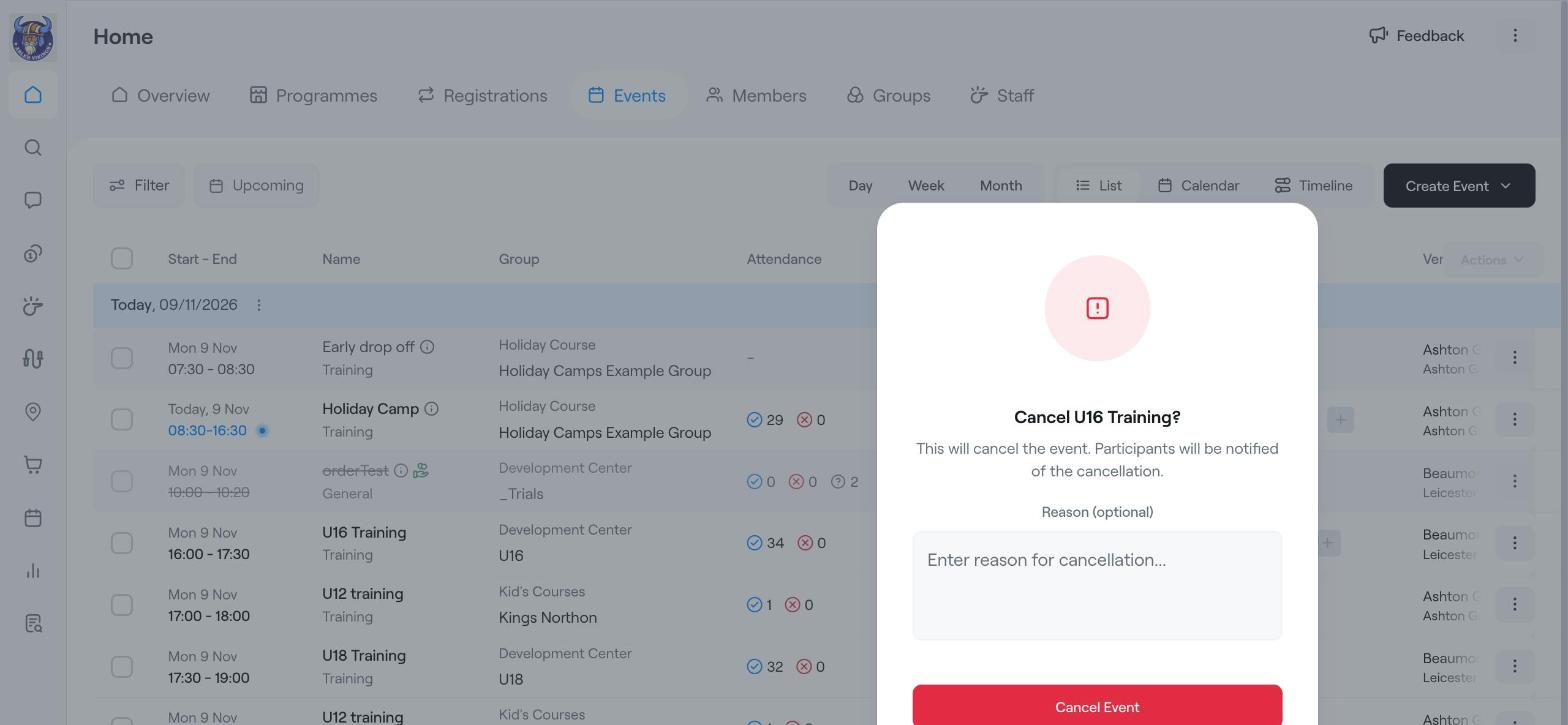
Click ⋮ on the event and choose Cancel.
Optionally write a Reason, for example "Pitch closed due to frost".
Click Cancel Event. Participants are notified of the cancellation.
Delete an event only if it was created by mistake. Deleting cannot be undone.
Click ⋮ on the event and choose Delete.
For repeating events, choose which events to delete: This event only, The following events on the same weekday and time, or All following events on all weekdays at the same time.
Click Delete Event.
Send message to the participants.
Clone the event to create a similar one.
Add cover photo.
Export the participant list as Excel, CSV or PDF.
View audit log to see who changed the event and when.
If you only want to tell participants that a session is not happening, cancel it rather than delete it. That way they get a notification and the event history is kept.
Create event
Create a single training session
Create Training Plan