Add products, variants and stock
Loading…
Add the items you want to sell, for example a club hoodie in different sizes. You can add sizes and colours as variants, let buyers personalise items with a name and number, and keep track of stock.
Example: a club hoodie in sizes S, M and L, with 10 of each in stock.
Click the shopping cart icon in the left menu and open the Products tab. Use All, Needs attention and Hidden to filter the list. For each product you can see its variants, Category, Status, Stock (with warnings such as Oversold, Low stock or No stock yet) and Price.
Click Add product.
Enter the Product name and Description.
Optionally choose Categories, and Suggested products to recommend in the buyer's cart.
Under Default gallery, upload images or choose existing ones. The first image is shown in the store.
Enter the Product price, or leave it empty to set a price for each variant in the next step.
Choose the VAT category, for example STANDARD · 20%. This is required.
Click Next.
Variants: click Add options like size or colour and add the options, for example sizes S, M and L. Each variant can have its own price, stock and images.
Personalisation: click Add name and number or Add a field if buyers should type something, for example a name on the shirt. Leave the price empty if it is free.
Inventory: keep Track inventory on and enter the Stock. Optionally add a SKU and Barcode. Turn on Continue selling when out of stock only if buyers may order items you do not have yet.
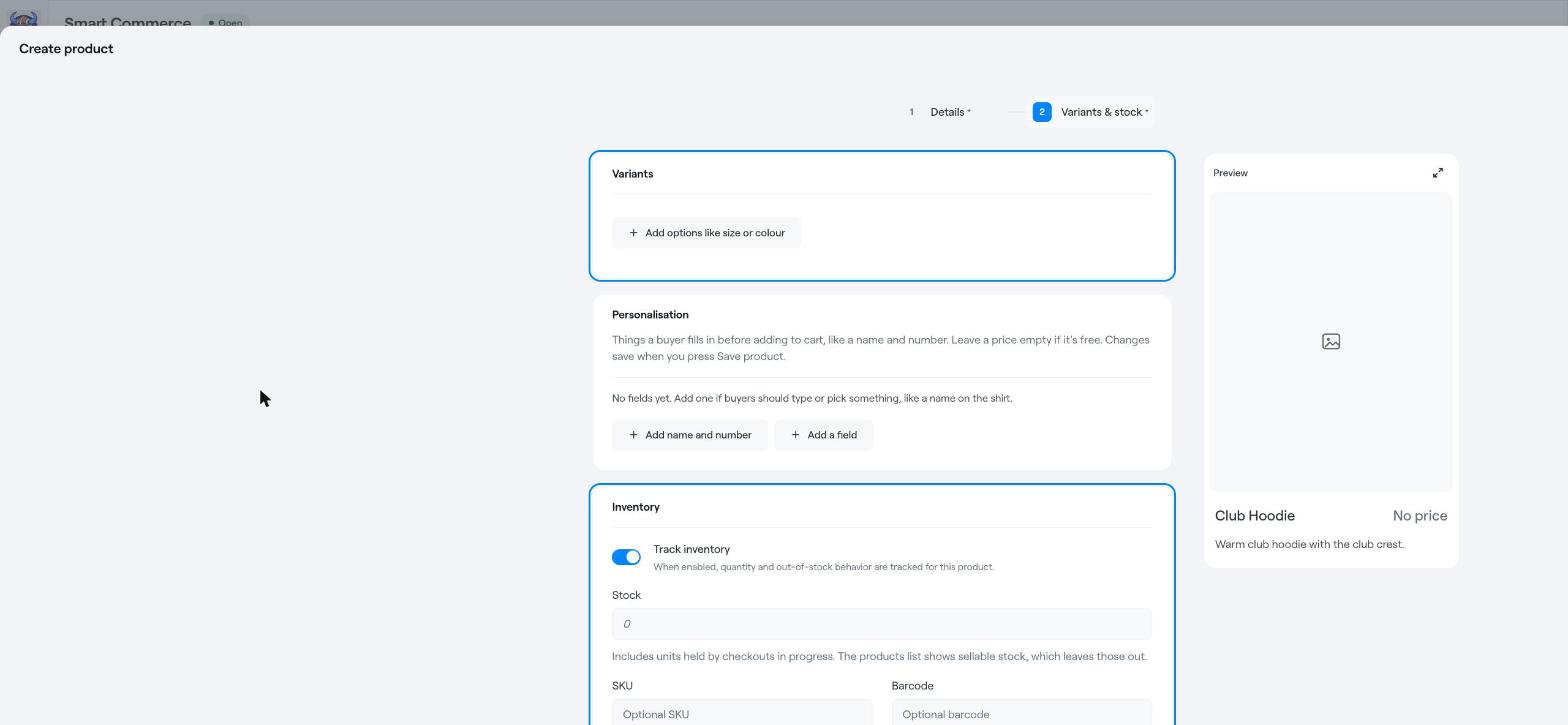
A Preview on the right shows how the product will look in the store. When you are ready, click Create product.
If the VAT category you need is missing, check the store Settings tab or contact Abler support.
Smart Commerce: overview and what needs attention
Smart Commerce: manage and hand over orders