Manage and hand over orders
Loading…
When someone buys from your store, the order appears under Orders. From there you mark orders as picked up or delivered, find older orders and export them.
Example: a parent collects two club jerseys at the clubhouse, and you mark the order as picked up.
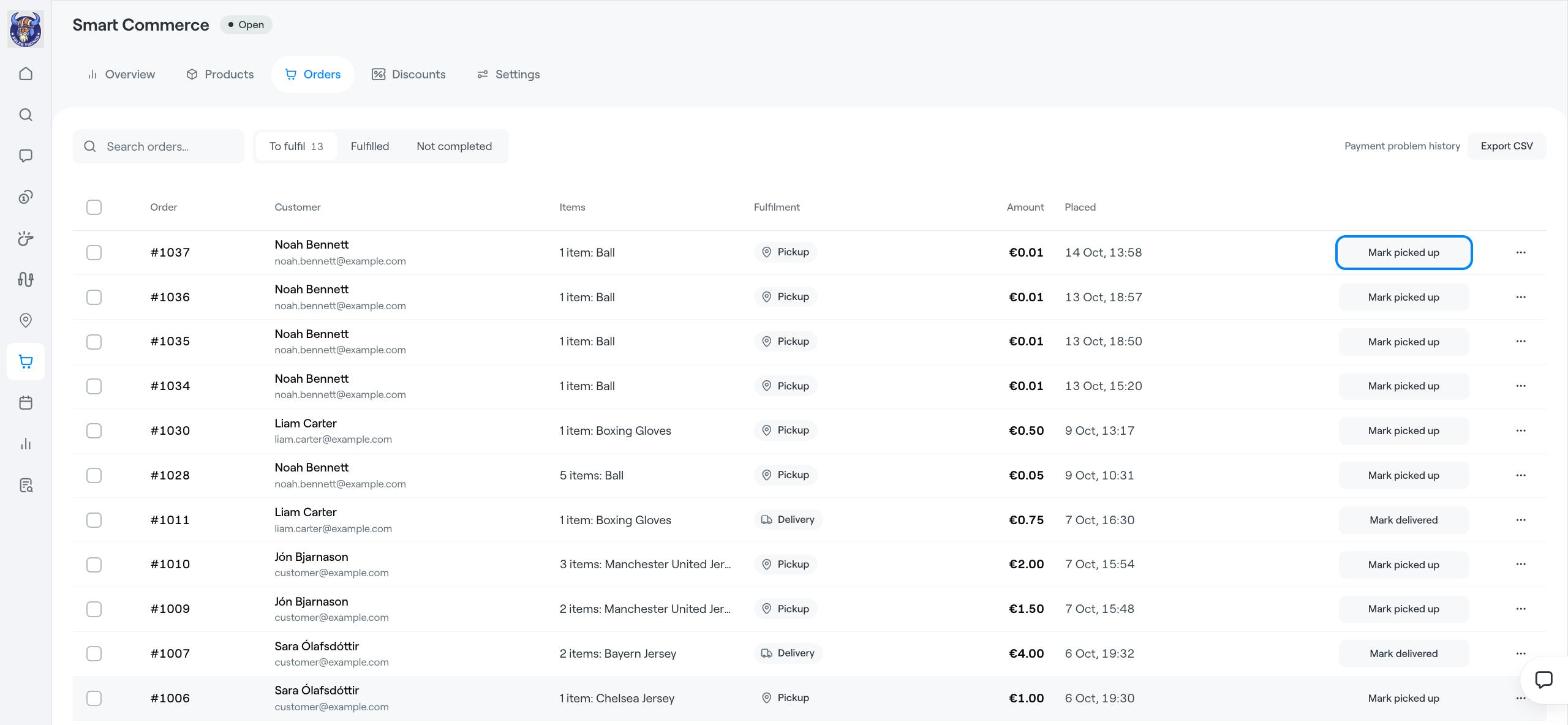
Click the shopping cart icon in the left menu and open the Orders tab. The tabs at the top show:
To fulfil: paid orders that still need to be handed over. The number shows how many are waiting.
Fulfilled: orders that have been picked up or delivered.
Not completed: orders where checkout was not finished.
Each order shows the Customer, the Items, the Fulfilment method (Pickup or Delivery), the Amount and when it was Placed. Use Search orders… to find a specific order.
[IMG
1]
For pickup orders, click Mark picked up when the customer collects the items.
For delivery orders, click Mark delivered when the items have been sent or delivered.
The order moves to Fulfilled. To hand over several orders at once, tick them and use the actions for the selected orders. Click the three dots (⋯) on an order for more options.
Payment problem history: see orders where the payment did not go through.
Export CSV: download your orders, for example for accounting.
The Overview tab warns you about orders waiting more than 3 days, so nothing is forgotten.
Smart Commerce: overview and what needs attention
Smart Commerce: add products, variants and stock