Smart Commerce overview
Loading…
With Smart Commerce your club can sell merchandise online, for example kits, scarves and balls. The overview shows how sales are going and what you need to deal with right now.
Click the shopping cart icon in the left menu. Next to the title you can see whether your store is Open. The tabs at the top are Overview, Products, Orders, Discounts and Settings.
This box lists things to fix, each with a quick action:
Items oversold: more was sold than you have in stock. Click Fix stock.
Variants low on stock: for example a size that is nearly sold out. Click Restock.
Variants have no stock yet: products you have not added stock to. Click Add stock.
Orders waiting more than 3 days: paid orders that have not been handed over to the customer. Click Hand over.
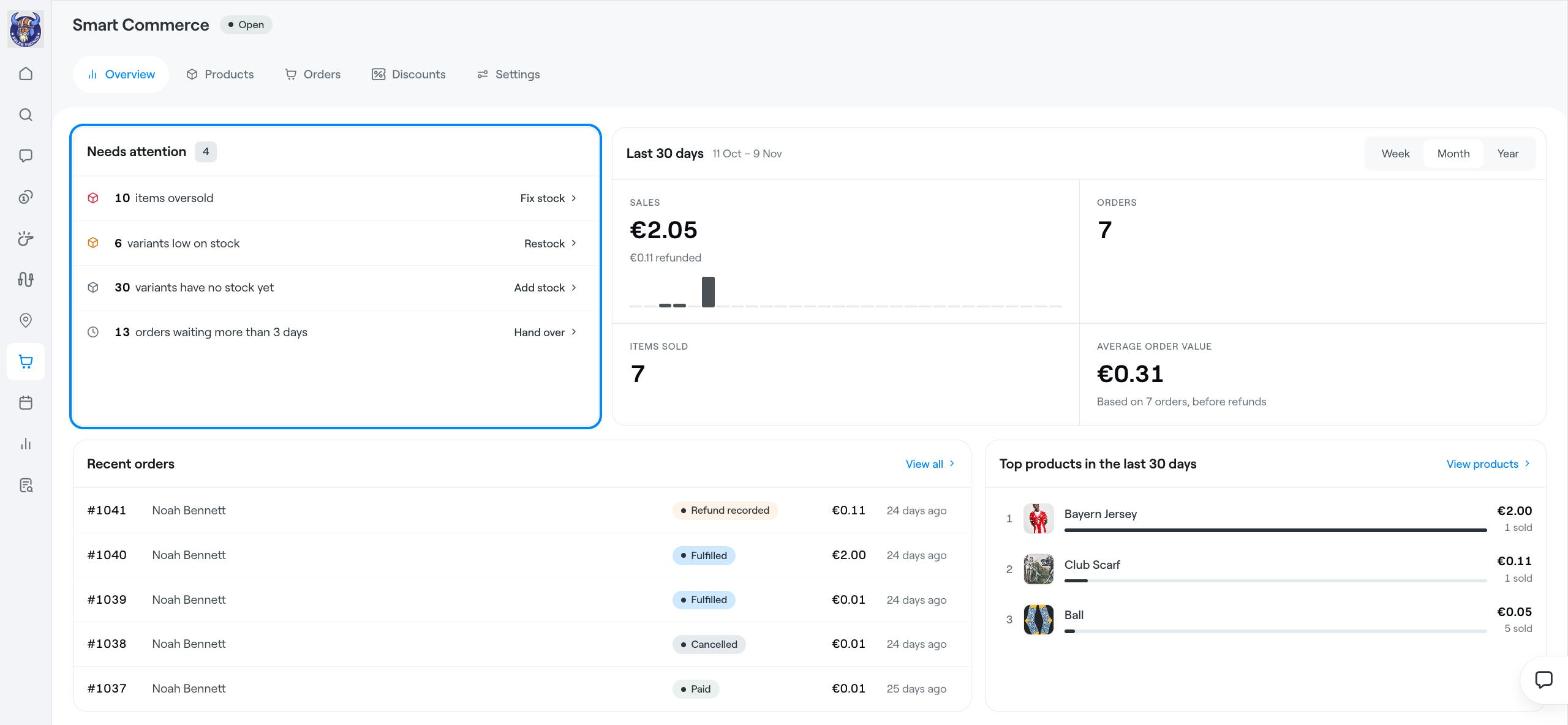
Choose Week, Month or Year to see Sales (with refunds), Orders, Items sold and Average order value.
Recent orders shows the latest orders with their status, for example Paid, Fulfilled, Cancelled or Refund recorded. Click View all to open the Orders tab.
Top products shows your best sellers. Click View products to open the Products tab.
Check Needs attention a couple of times a week so customers get their orders quickly and you do not sell items you do not have.
Smart Commerce: add products, variants and stock
Smart Commerce: manage and hand over orders