Create discounts in the online shop
Discounts lower the price for some buyers in your online shop, for example a code for season ticket holders, a discount when buying several items, or free delivery over a set amount.
1. Open discounts
Click the shopping cart icon in the left menu and open the Discounts tab. Use All, Live, Scheduled, Paused, Draft and Ended to see your discounts, or search by name or code.
2. Create a discount
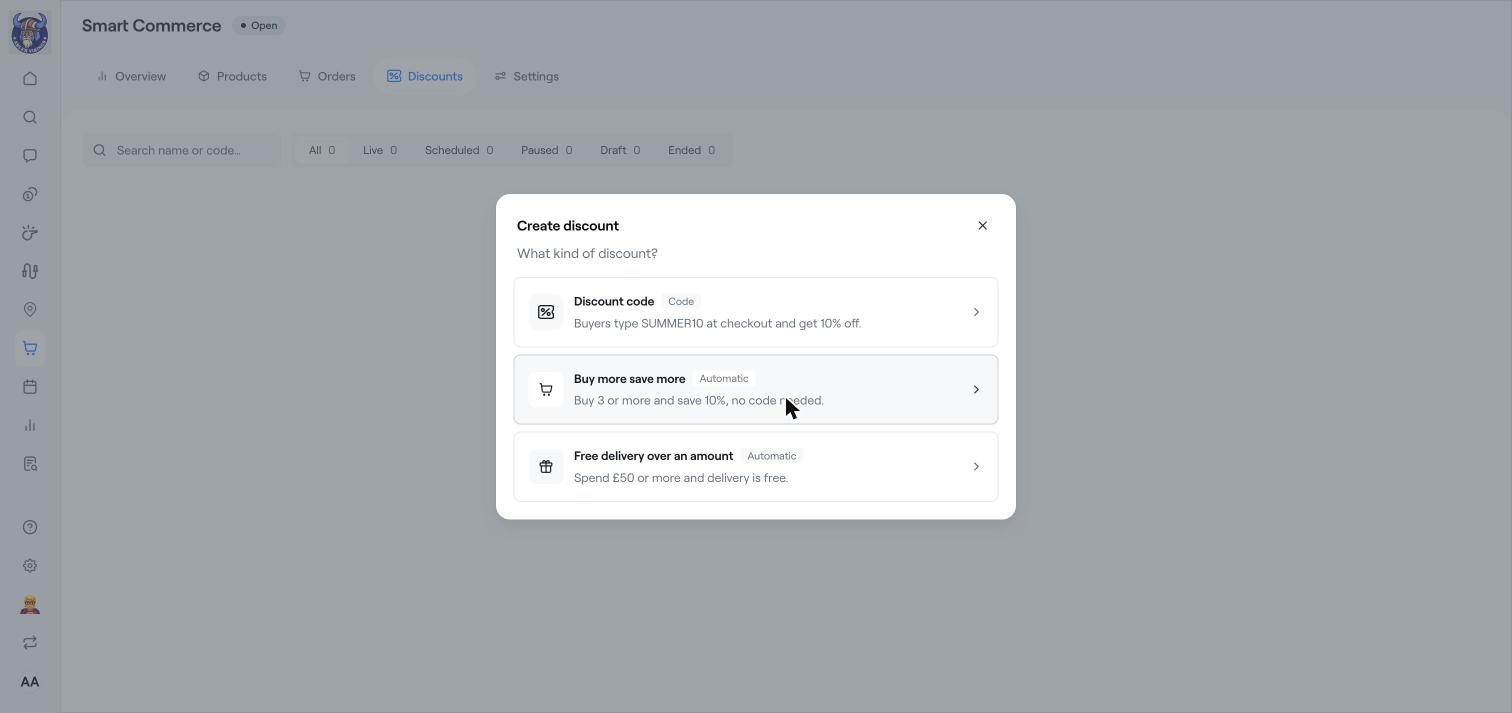
Click Create discount.
Choose the kind of discount:
Discount code: buyers type a code at checkout, for example SUMMER10 for 10% off.
Buy more save more: automatic, for example buy 3 or more and save 10%. No code is needed.
Free delivery over an amount: automatic, for example free delivery when buyers spend 50 or more.
Fill in the amount or percentage, which products it applies to and when it starts and ends.
Save the discount. It shows as Live when it is active, or Scheduled if it starts later.
Good to know
You can pause a discount and start it again later.
Discounts for programmes and memberships are set up separately. See Create a discount code.
Related articles
Smart Commerce overview
Online shop settings: open or close the store, pickup and delivery
Add products, variants and stock