Getting started as an Abler Admin
Loading…
When you begin as an admin in Abler, it’s important to understand the platform’s core structure — known as the Abler Tree.
The Abler Tree represents your organization’s hierarchy and helps you manage:
Divisions / Departments
Members
Activities
Visibility on your booking platform
You can always edit existing divisions or create new ones to suit your organization’s needs.
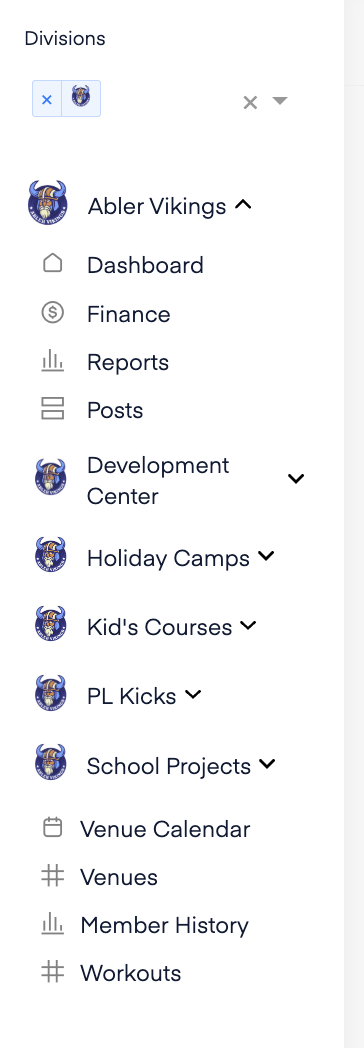
See more about the Abler Tree in the attachment at the bottom of the page.
These three features work together and form the foundation of your setup in Abler:
Services can be:
Public – visible to anyone on your booking platform
Private – shared via a unique link for a specific group
We recommend reviewing the related articles on these three components, as understanding how they work together is crucial for managing your club effectively.
Public link — to your booking platform for anyone to book or,
Private links — for specific groups
A combination of public and private services is the most common approach.
Tip: You can generate links or access your booking platform by clicking the black icon on the far right of the Service Overview page (Go to SHOP).
Parents receive a link or visit your booking platform and create an Abler account.
During signup, they add their child or children.
They complete registration for the selected service.
Guide: How Parents Create an Account via Your Link
After registration:
Parents are prompted to download the Abler app from the success screen.
A welcome email is sent with information about Abler and the benefits of using the app — such as staying updated on schedules and activities.
See more in the attachment at the bottom of the page.
Here’s a Welcome Package you can share with your members when your organization starts using Abler. It includes helpful information to get them started and make the most of the platform.
Abler supports a variety of discount options, including:
Sibling discounts
Discount codes
Multi-use codes
Learn more about discounts here
You can communicate with your members through:
Posts
Direct messages
You can add other admins to the organization or to a specific division and you can also assign coaches to specific groups. Abler offers three different coach roles.
Coaches can access their workspace via:
The Abler mobile app (most popular)
The desktop version
Set up your venues in advance to easily select them when creating events or services.