Send messages to groups, families or members
Loading…
You can send messages from Askja to a whole group, to the families in a programme or event, or to one person. Messages arrive in the Abler app.
Example: you need to tell the Camps 9-10 yrs group that tomorrow starts an hour later.
Go to Home → Groups.
Click the three dots (⋮) at the end of the group's row and choose Send message. The Compose message panel opens at the bottom right.
Under Select recipient, choose who should get the message: Members, Guardians or both. Coaches are always included.
Check the line You are sending message to … users. It shows how many people will receive the message.
Write your message and click the send button (paper plane).
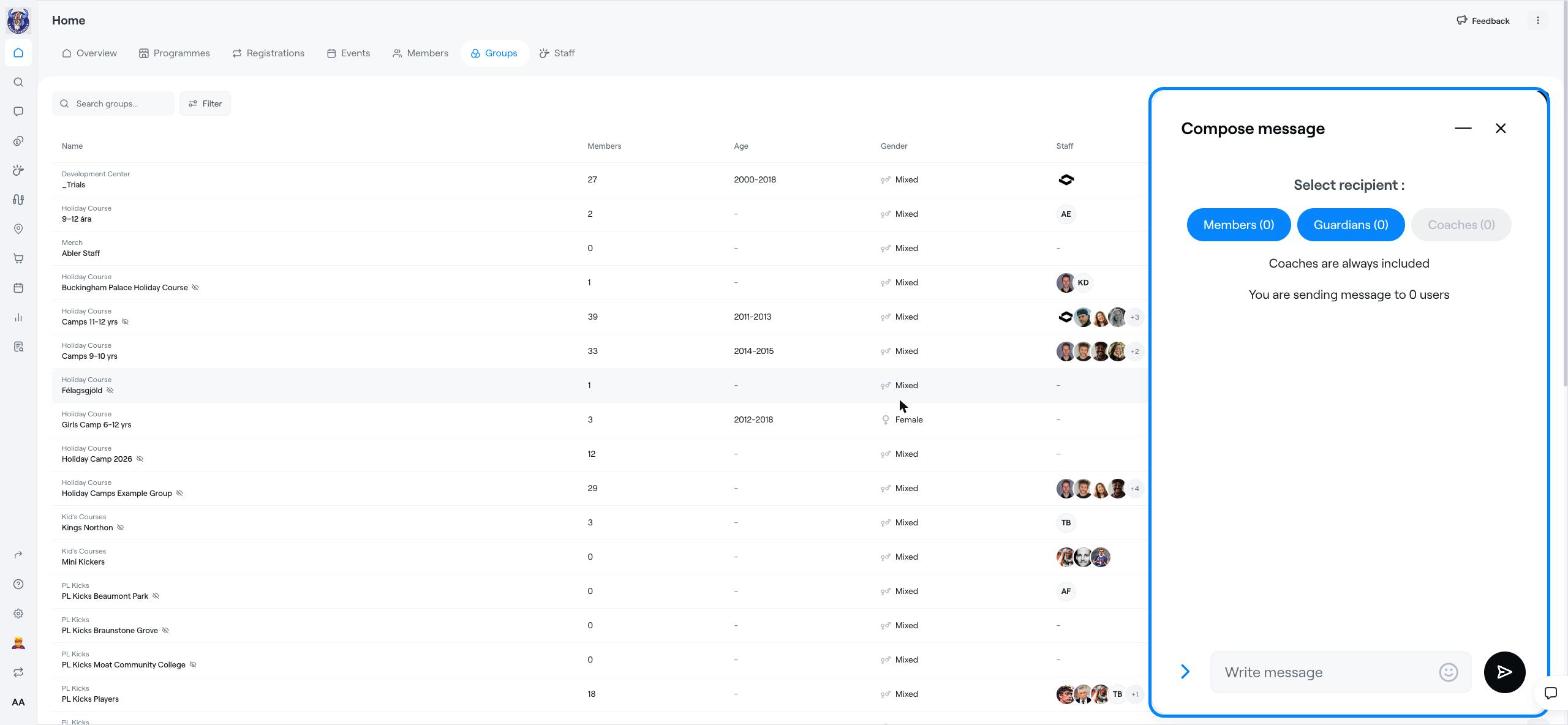
Hidden groups: you cannot message a group whose visibility is set to hidden. Hidden groups have a small crossed-out eye icon next to their name. To message the group, first edit the group and change its privacy to Visible.
Click the chat bubble in the left menu to open the Messenger.
Click the new message button at the top of Conversations.
Under Search for people…, type the person's name and choose them.
Write your message and send it.
Your earlier conversations are listed on the left, and you can search them.
An event: click ⋮ on the event and choose Send message to message its participants.
A registration: click ⋮ on a registration and choose Message family or Send message.
A member's overview page: click Send message on the profile card.
Failed card payments: use the Message icon to contact the payer.
If the number of recipients is lower than you expect, some members or guardians may not have an Abler account yet. Invite them so they can receive messages in the app.
Edit, cancel or delete an event
The member overview page: care & safety info and internal notes
Groups (Create, edit & delete)