Viewing and exporting survey responses
Loading…
You can access and analyse survey data for your service by viewing individual survey responses or downloading an Excel file containing all survey responses for a specific service or service option.
Find and select the specific service for which you want to view survey responses.
On the right-hand side, locate the member whose response you want to view and click the checkmark icon. The member's submitted responses will be displayed.
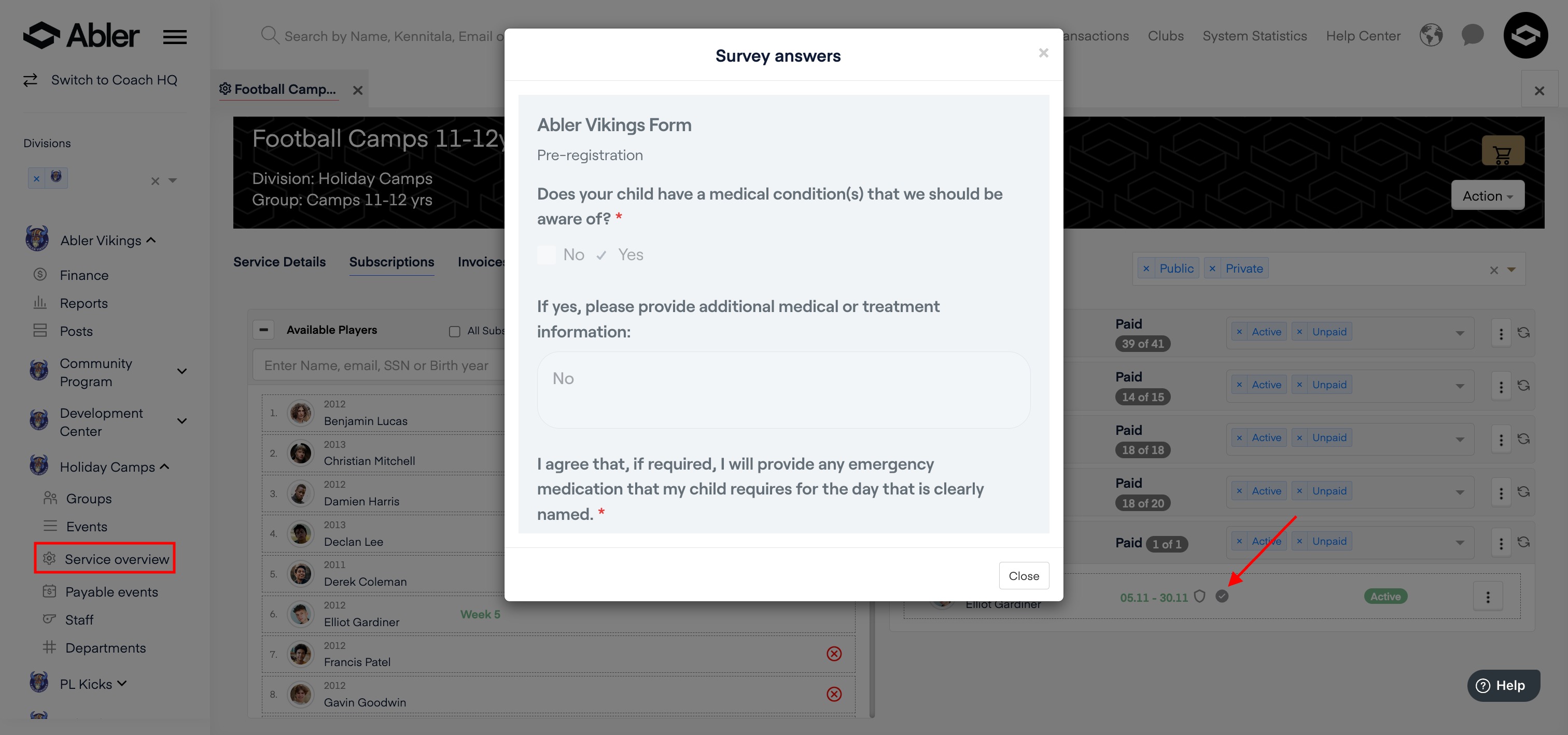
1. If you need to download survey responses specifically from Survey Options, follow the same steps as above.
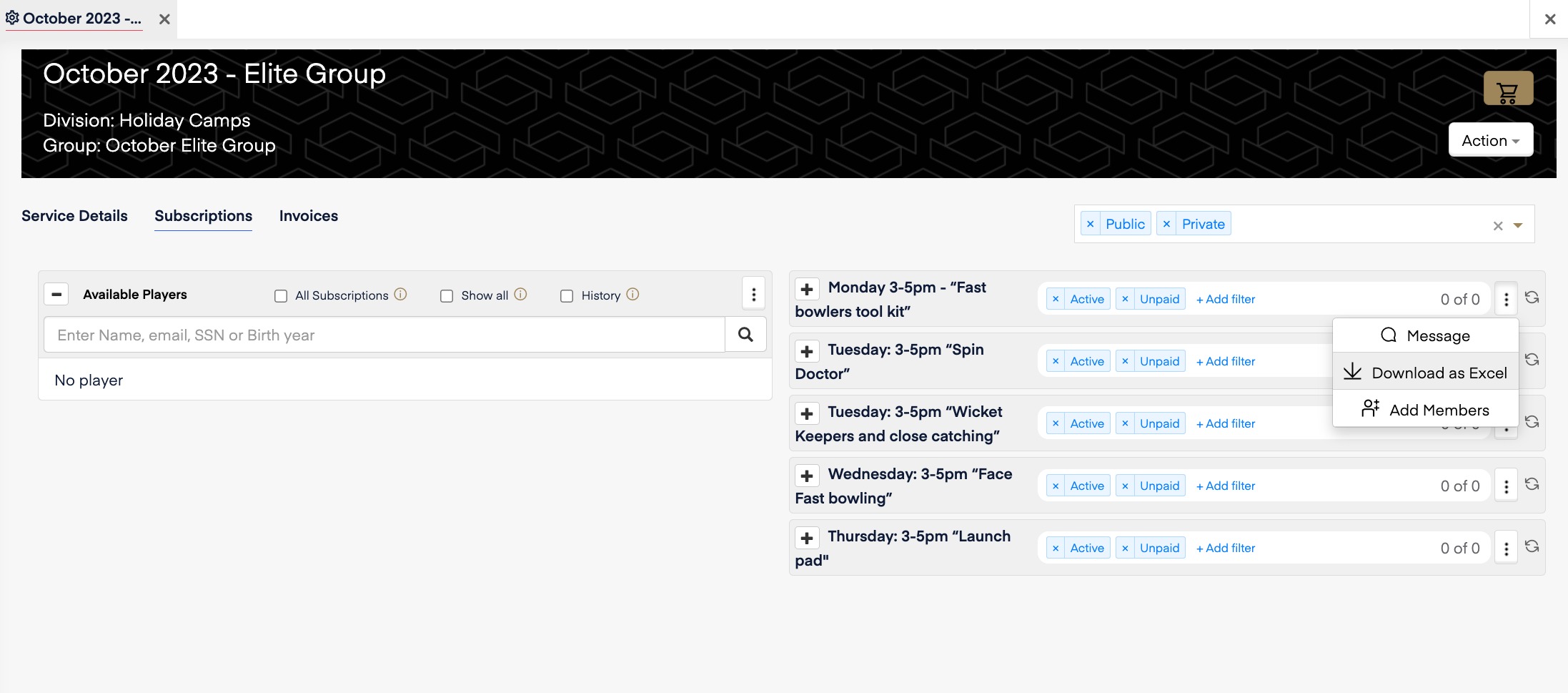
2. Click on the three dots (⋮) in the Survey Options section and select Download as Excel.
3. This will generate and download an Excel file containing all submitted survey responses for the selected survey.
4. Open the Excel file, where you will find two tabs—one of them contains the survey responses.
Downloading All Responses from Service as an Excel File
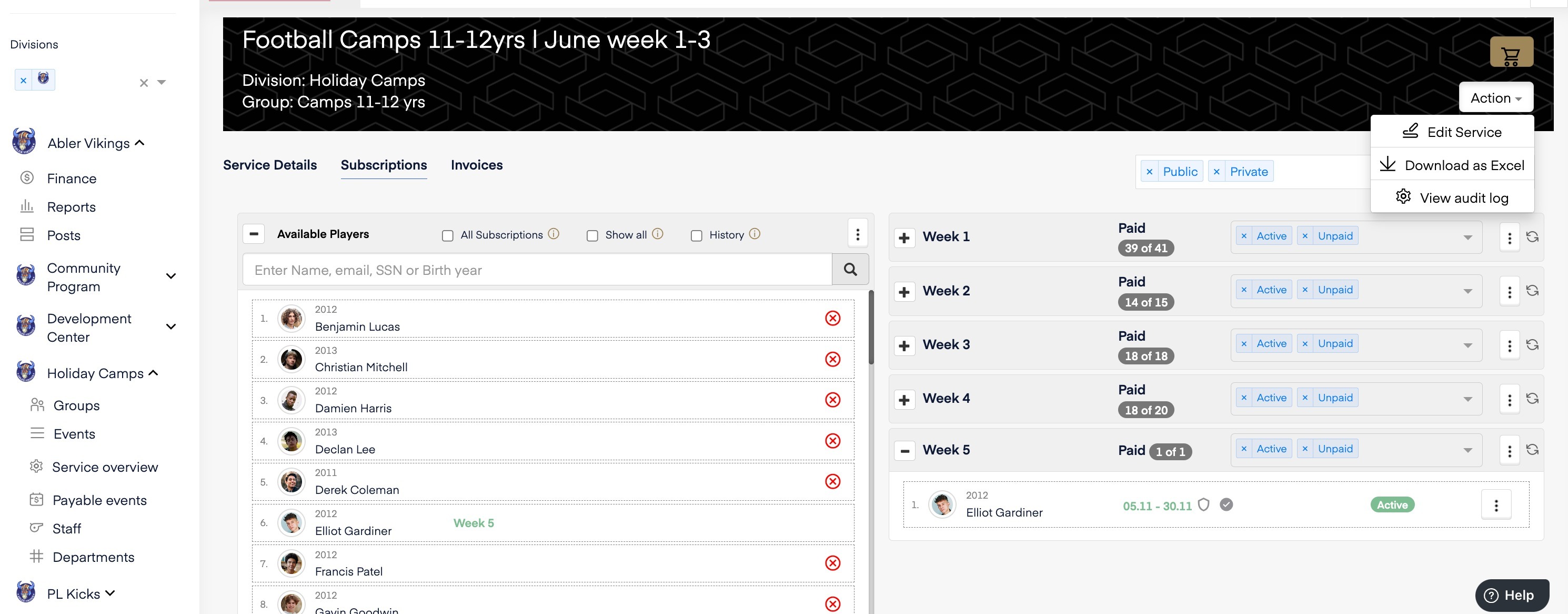
Once downloaded, open the Excel file. Navigate to the tab next to the export tab to view the survey responses.