Edit, cancel or delete an event
You can edit, cancel, and delete events in Abler.
Edit an event if you need to make changes to details such as time, location, or description, both for single events and a training plan.
Cancel an event if it needs to be called off, and you want to inform members and parents about the reason.
Delete an event if you want to remove it without notifying anyone, for example, if it was scheduled on a public holiday by mistake.
In app:
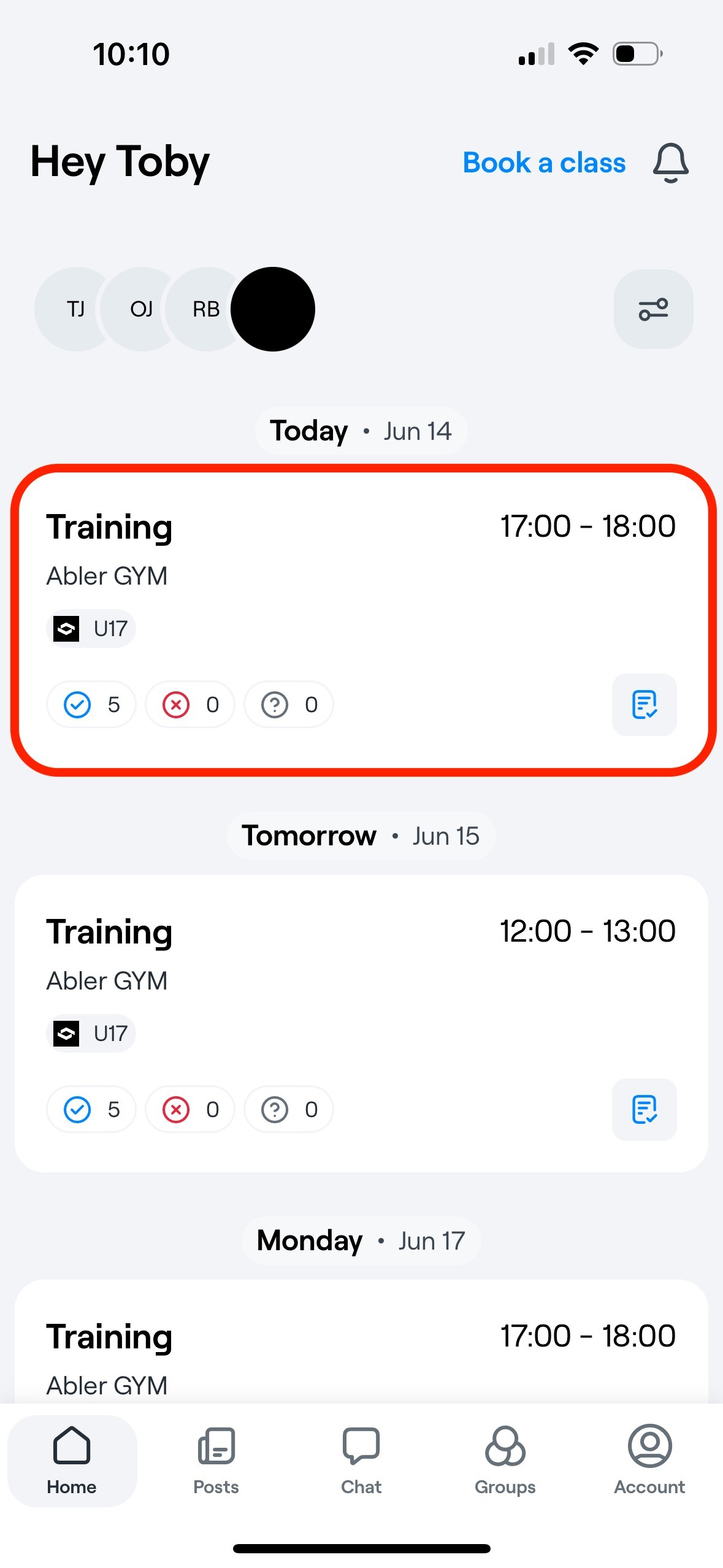
1. Select the event you want to edit, cancel or delete.
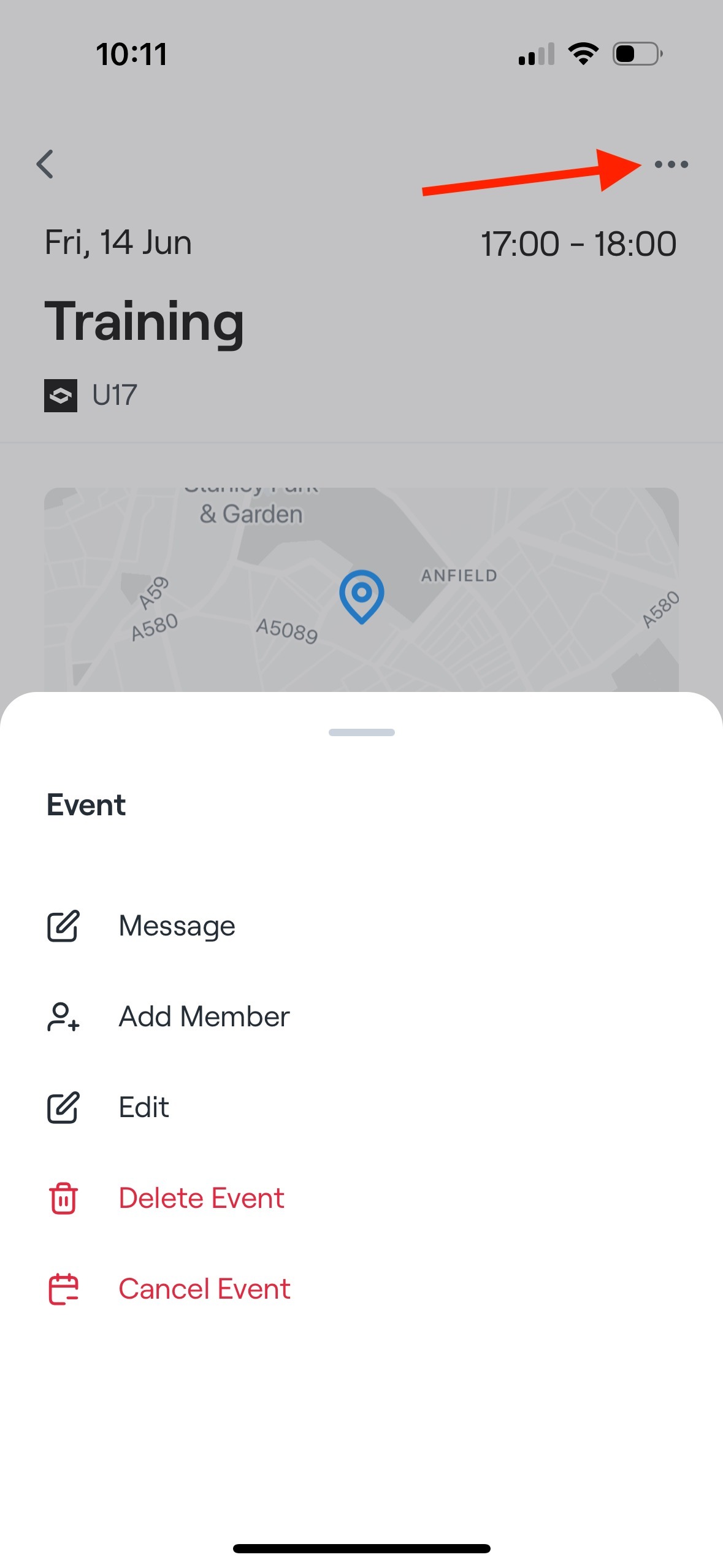
2. Click on the three dots in the upper right corner and then you can edit, delete or cancel the event.
In web:
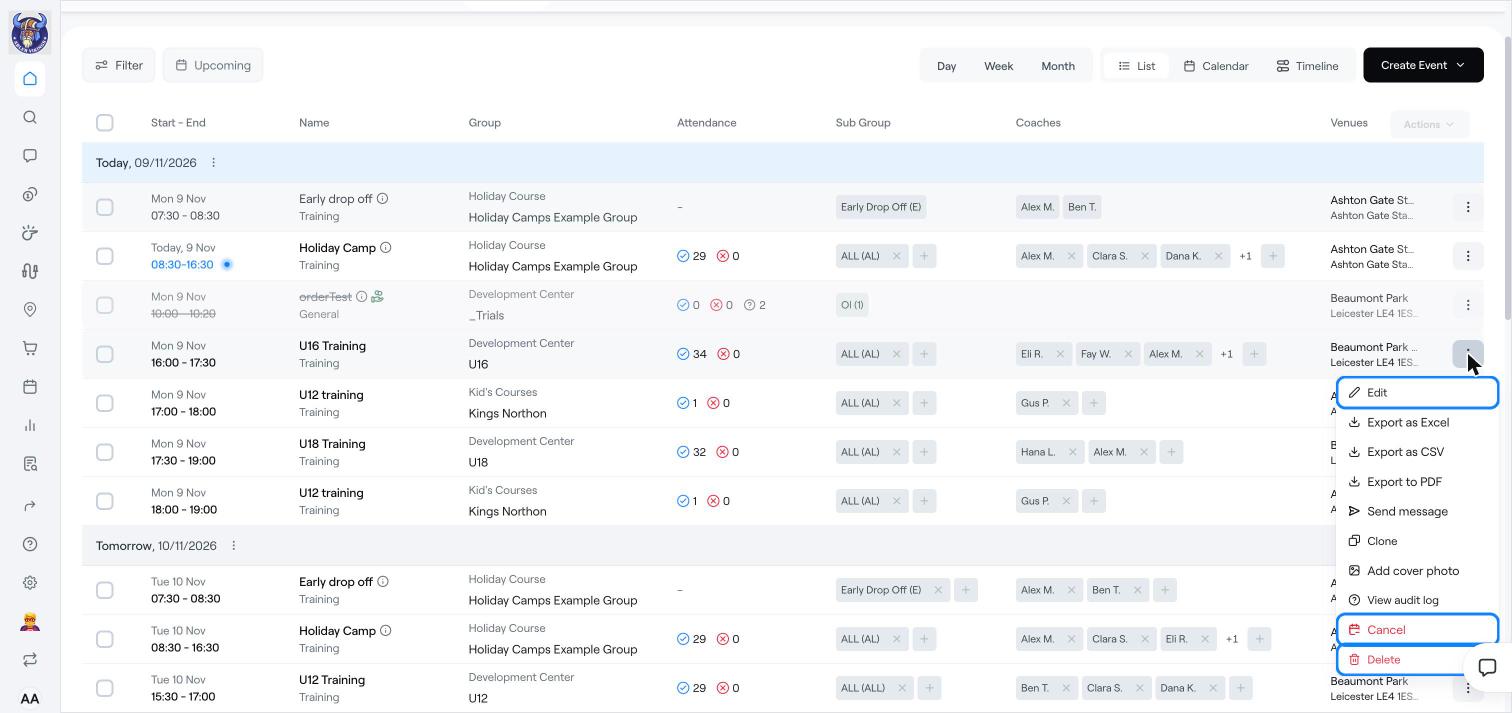
Open the group and go to the Events tab, or go to Home → Events.
Find the event and click the three dots (⋮) at the end of its row. Choose Edit, Cancel or Delete.
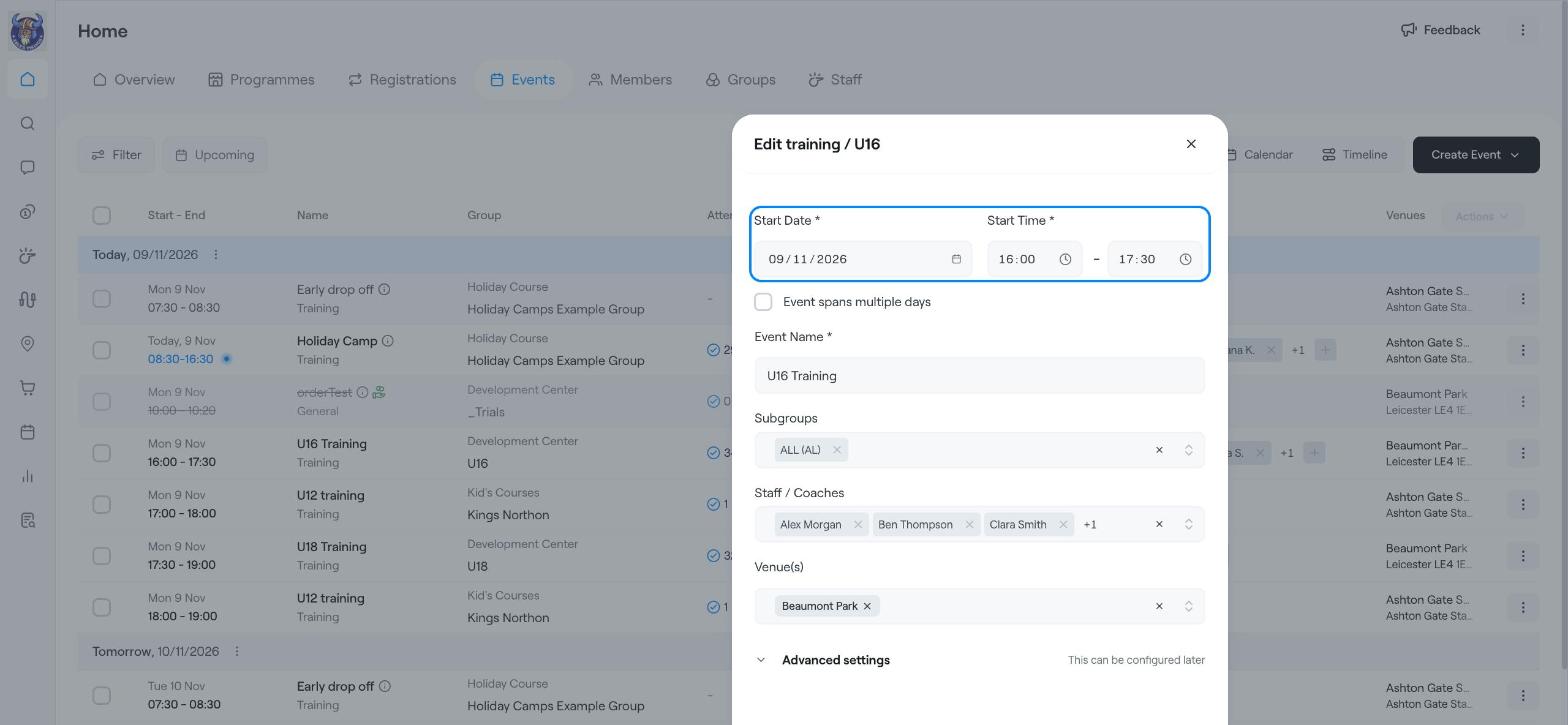
Edit: change the date and time, name, subgroups, staff/coaches, venue or advanced settings, then click Update (for example Update training).
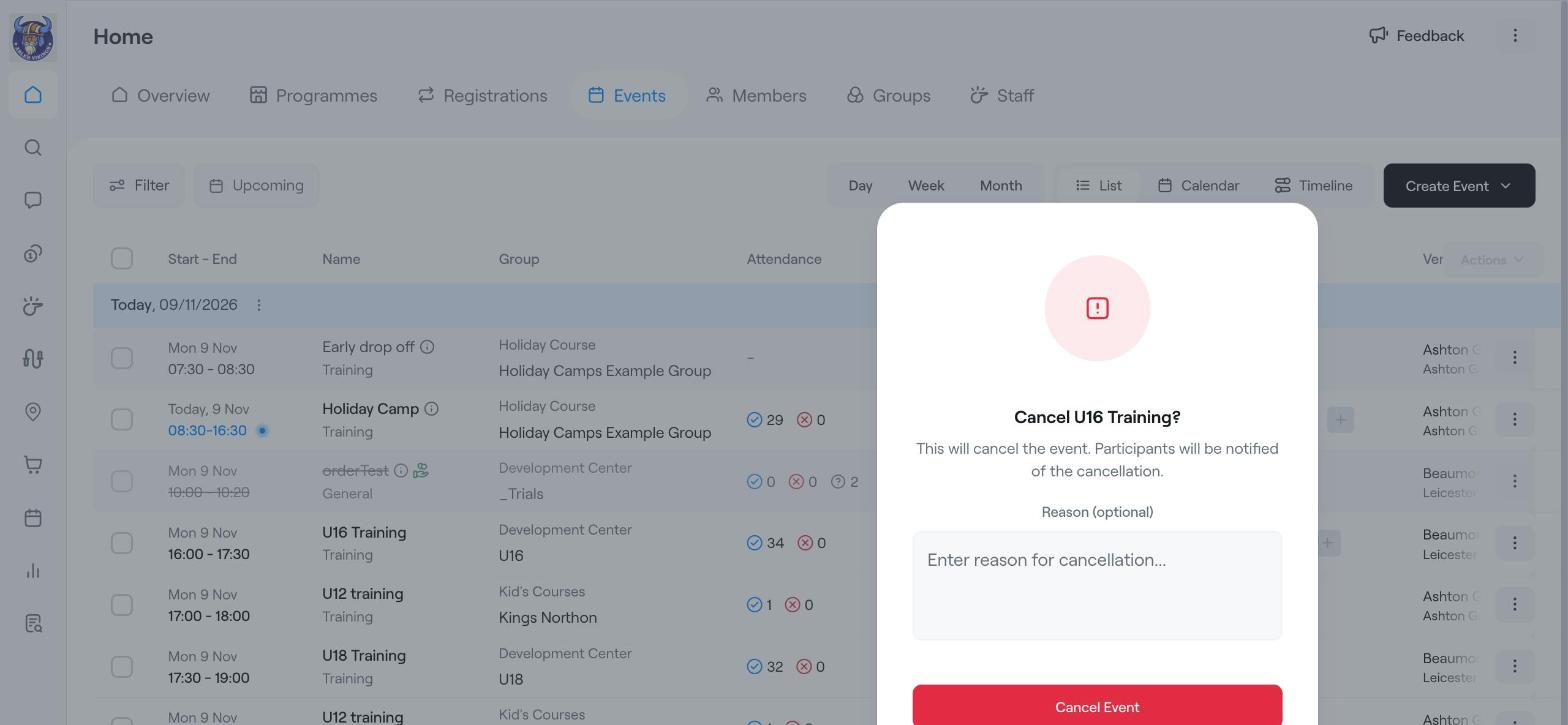
Cancel: write an optional reason and click Cancel Event. Participants are notified, and the event stays in the list with a line through it.
Delete: for repeating events, choose This event only, The following events on the same weekday and time or All following events on all weekdays at the same time, then click Delete Event. Deleting cannot be undone.