Create a single training session
You can arrange single training sessions for members. These sessions are tracked and recorded for attendance, providing a clear history of participation and timing.
In app:
Navigate to the groups button and then click on staff and find the correct group.
Go to Schedule, select the "+" in the down-right corner.
Click Training to create one and fill in all the information about the training
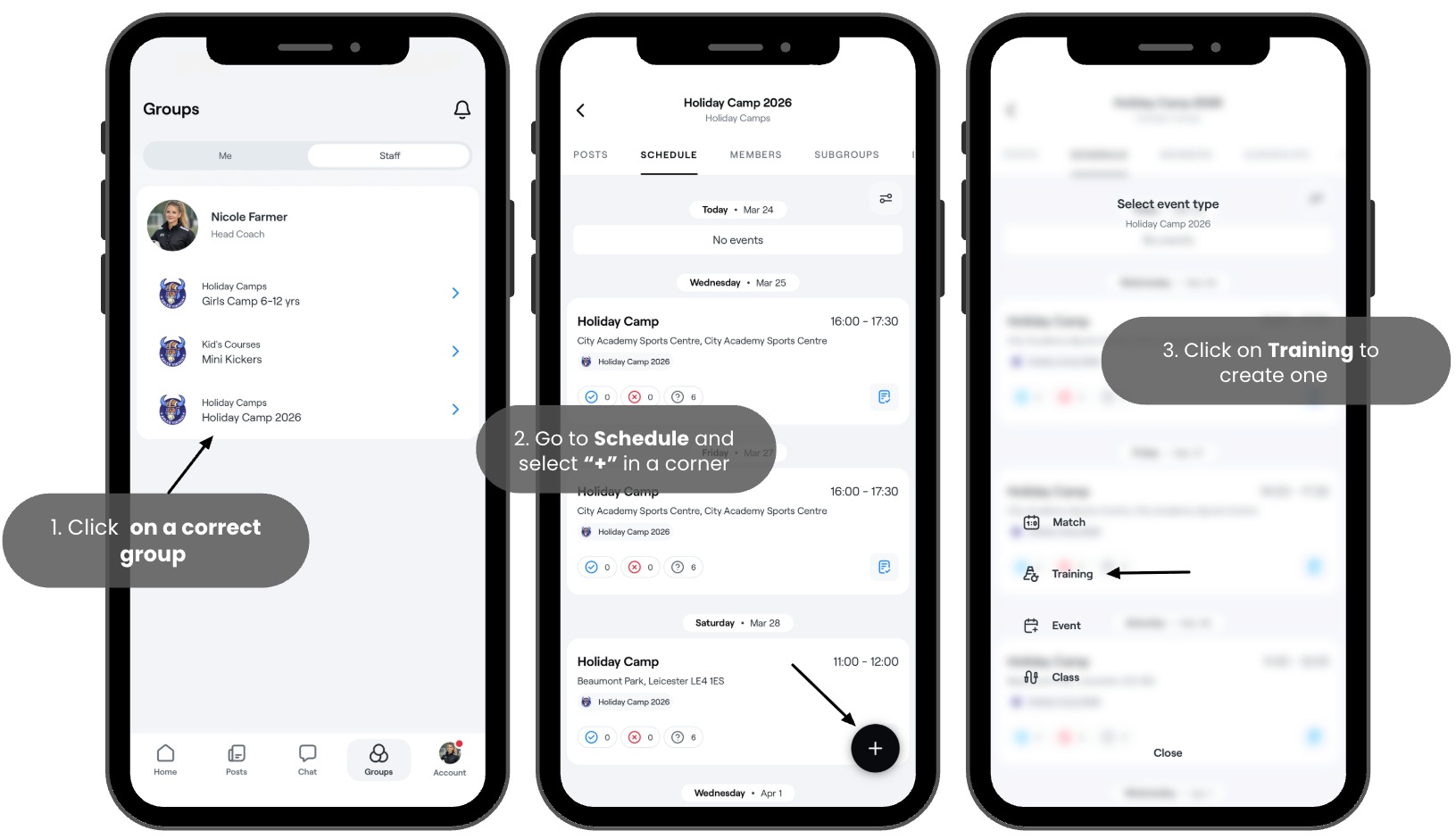
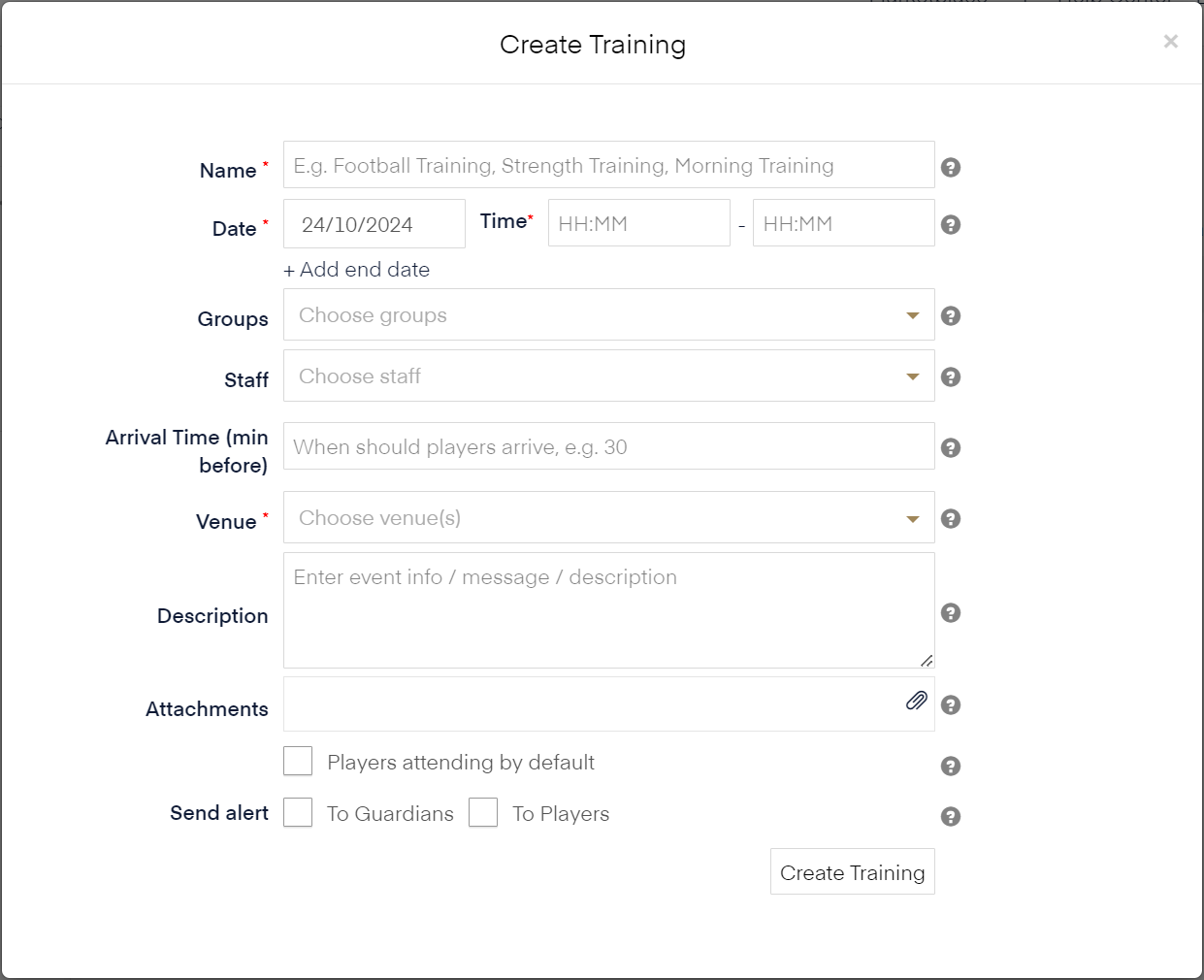
It is important to select the correct group(s) so the appropriate members and guardians are invited. Also, select the location where the training will take place.
Selecting Default attendance assumes everyone will attend unless a player or guardian changes their status to "not attending". If Default attendance is not selected, players/guardians must actively respond to indicate whether they will attend. Note: As a coach, you can always override the attendance list as needed.
Send notification: You can choose to notify players and/or guardians about the training.
On a browser:
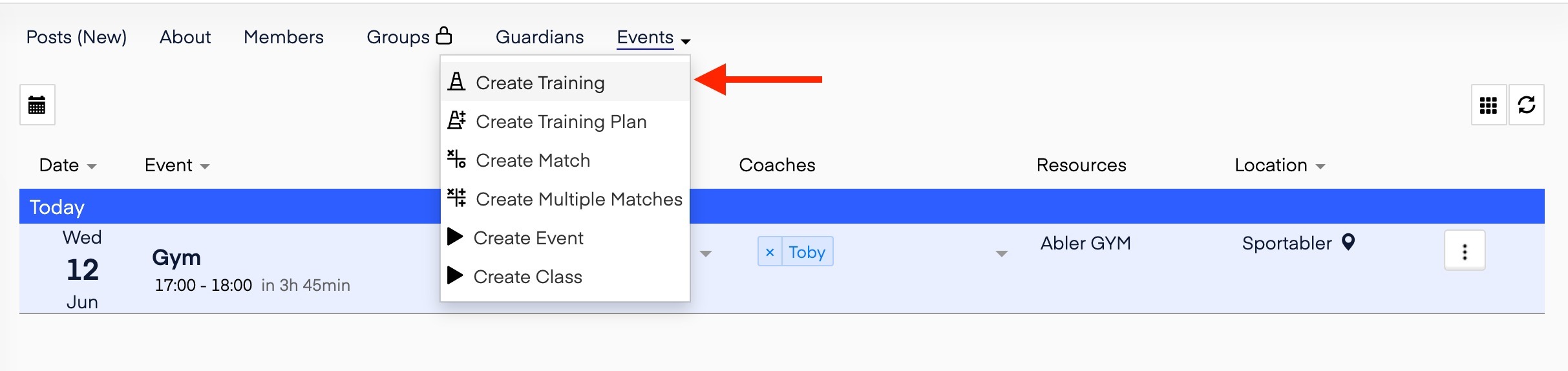
Navigate to the group for which you want to schedule the training.
On the Events menu, select Create Training.
Fill in the necessary details for the training.
RELATED ARTICLES
How to create a training plan (events)
Create payable event (events)