Automatic sibling discount
Loading…
By using discount profiles in Abler, you can set up automatic sibling discounts. When a user purchases a service linked to a discount profile, the system creates a discount coupon that is automatically applied during the next purchase within the same family.
How Do Sibling Discounts Work?
Purchase 1: Parent registeres the first child and pays full price.
Purchase 2: Another child from the same family registers – a discount coupon is automatically applied (e.g. 10% off).
Purchase 3: Another child from the same family registers - a discount coupon is automatically applied (e.g. 10% off).
The discount is based on the children being registered under the same family tree in Abler.
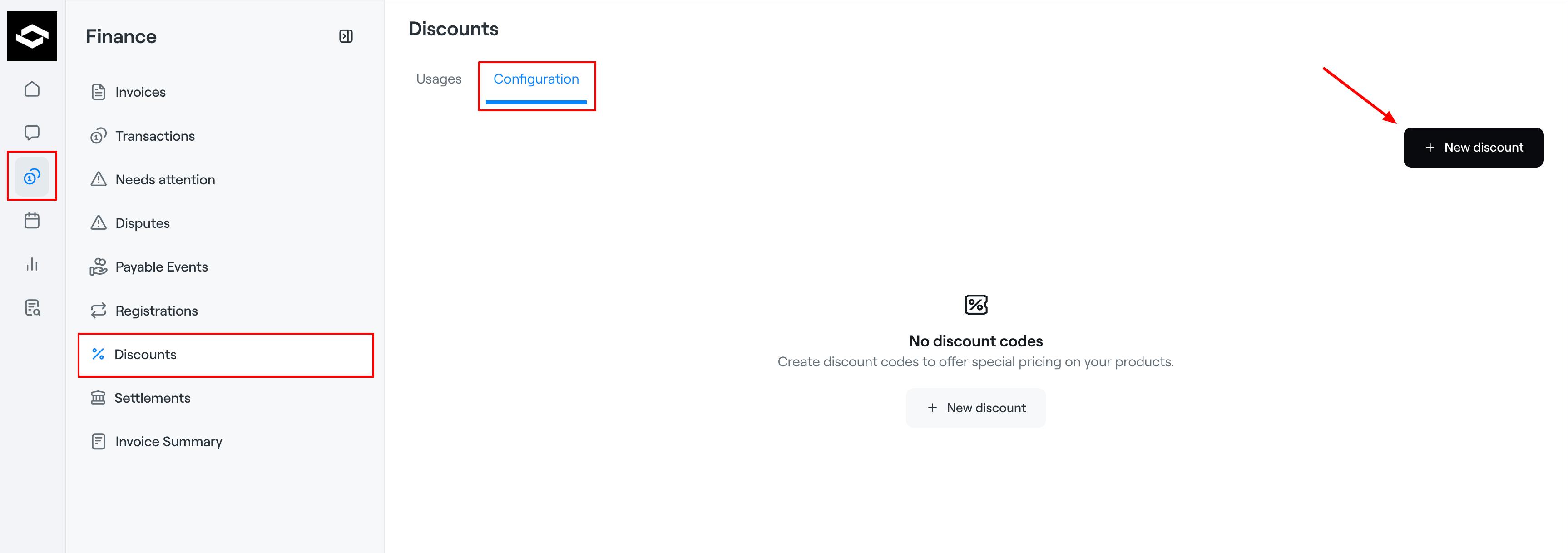
Go to Finance > Discounts > Configuration
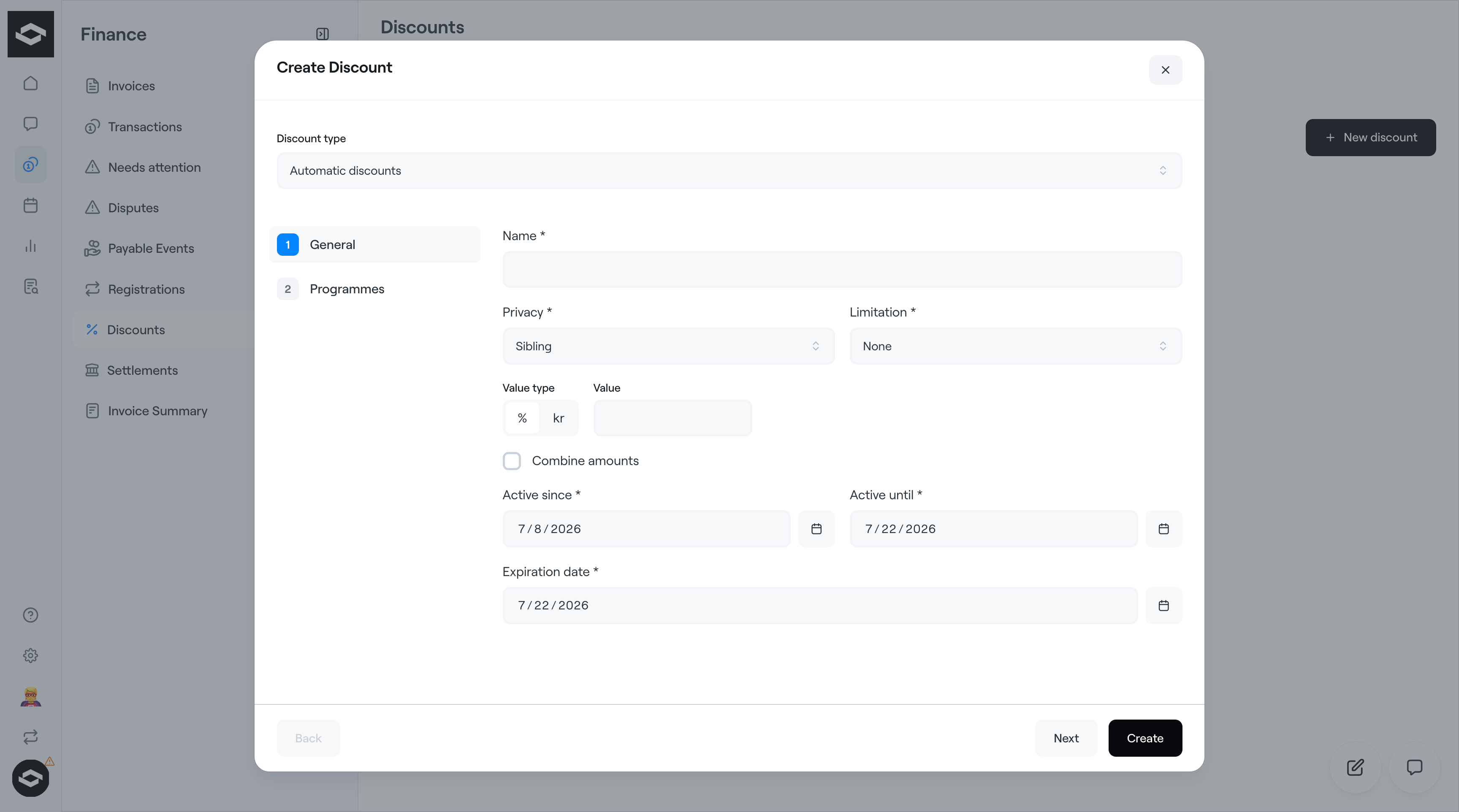
Click "New discount" > Choose discount type "automatic discount"
Fill in the following:
Name: e.g. “Sibling Discount”
Privacy: Siblings
Value type and value: Percentage discount (e.g. 10%) or amount.
Limitations
None: Discount applies to all services
Same Division Discount only applies within the same division
Multi Division: Discount applies across different divisions
Multi Group: Discount applies across different groups
Multi Service: Discount applies to other services than the one originally purchased
Calculation Rules
If “Combine Amounts” is not checked: the discount is only calculated from the second purchase
If “Combine Amounts” is checked: the discount is calculated as the weighted average of the two most recent purchases
Example:
If the discount is 10%, and the amounts of the invoices are as follows:
Invoice 1: 50,000
Invoice 2: 10,000
Invoice 3: 30,000
The discount is calculated as follows:
Purchase 1 = 0 (no discount)
Purchase 2 = (50,000 + 10,000) / 2 * 10% = 3,000
Purchase 3 = (10,000 + 30,000) / 2 * 10% = 2,000
Note: The order of purchases 1 and 2 does not matter for the discount on purchase 2, since it is calculated as a weighted average of both. However, for purchase 3, the discount is based on purchase 2 and 3, so the amount may vary depending on which was more expensive.
This means the buyer gets a higher discount if the more expensive service is purchased later.
This only applies if three services are purchased. If only two services are purchased, the order does not affect the discount.
Timing
Active since: Coupons Issued From / When discounts start applying
Active until: Coupons Issued Until / When discounts stop being generated
Expiration date: Coupon Expiration /Final date after which all coupons expire
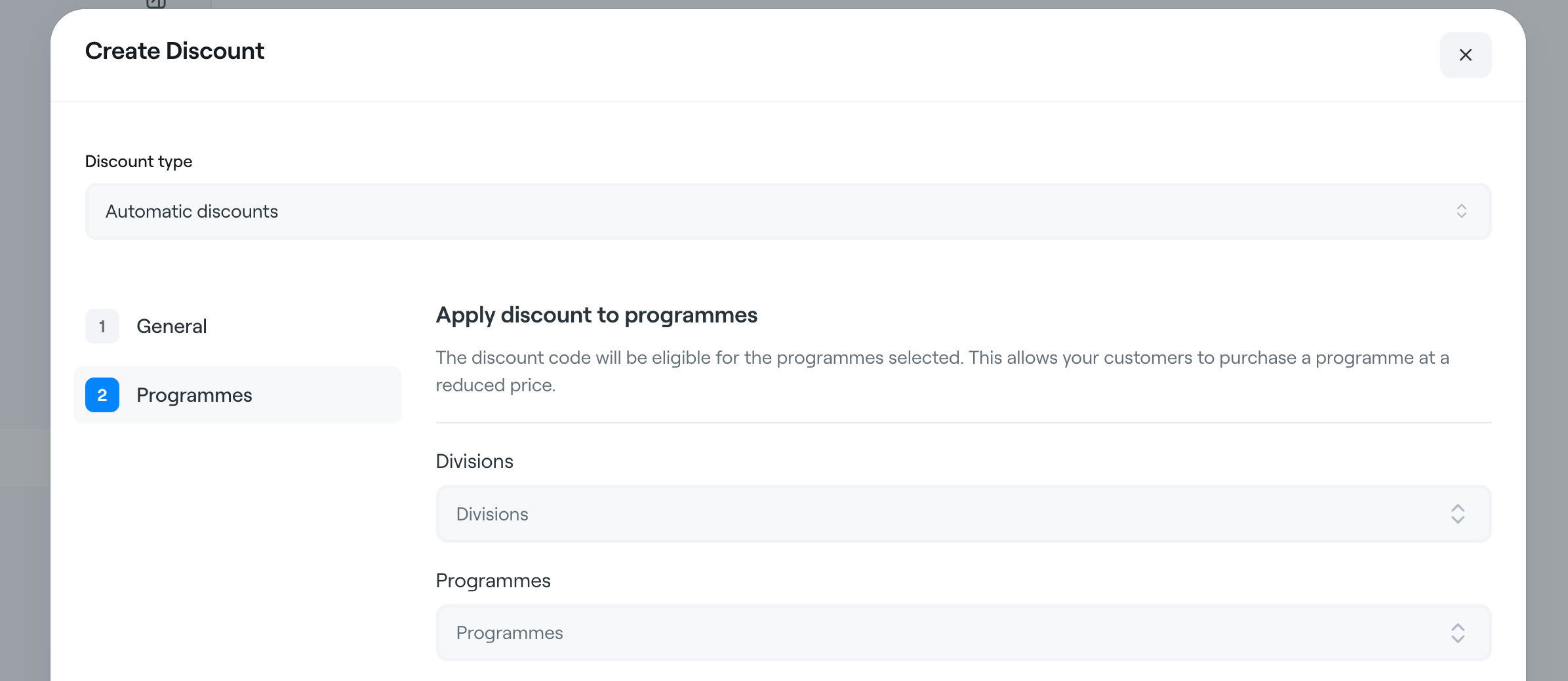
Select the division where the discount should be active.
Select the programme where the discount should be active.
Add a discount profile to the service later.
Open the service where the discount should apply
Select one or more discount profiles to attach
Save
Note: The discount is not applied retroactively if a parent has already paid before the discount was attached.
See article: Pre-registering a participant with a discount
Child 1 registers and pays full price
Child 2 registers for a different course and gets 10% off
If “combine amounts” is enabled, the discount amount may vary depending on the order of purchases.
Pre-registering a participant with a discount
Attaching a discount profile to a service
Cross-department vs. same-department discounts