Create and edit subgroups
You can create sub-groups within your group to organise members into smaller categories and create events specifically for those sub-groups.
For example, you could create sub-groups for:
Beginners
Team A
Goalkeepers
And more
Attach Sub-Groups to Events
When creating events, you can assign one or multiple sub-groups to the event if necessary, ensuring that the right members are included.
Recommended Setup
We recommend that you always keep the sub-group called "All" as it is where players are automatically added from the beginning. This makes it easier to communicate with the whole group while still having the option to create more specific sub-groups as needed.
This feature helps you manage training sessions, matches, and communication more efficiently within your team.
In app
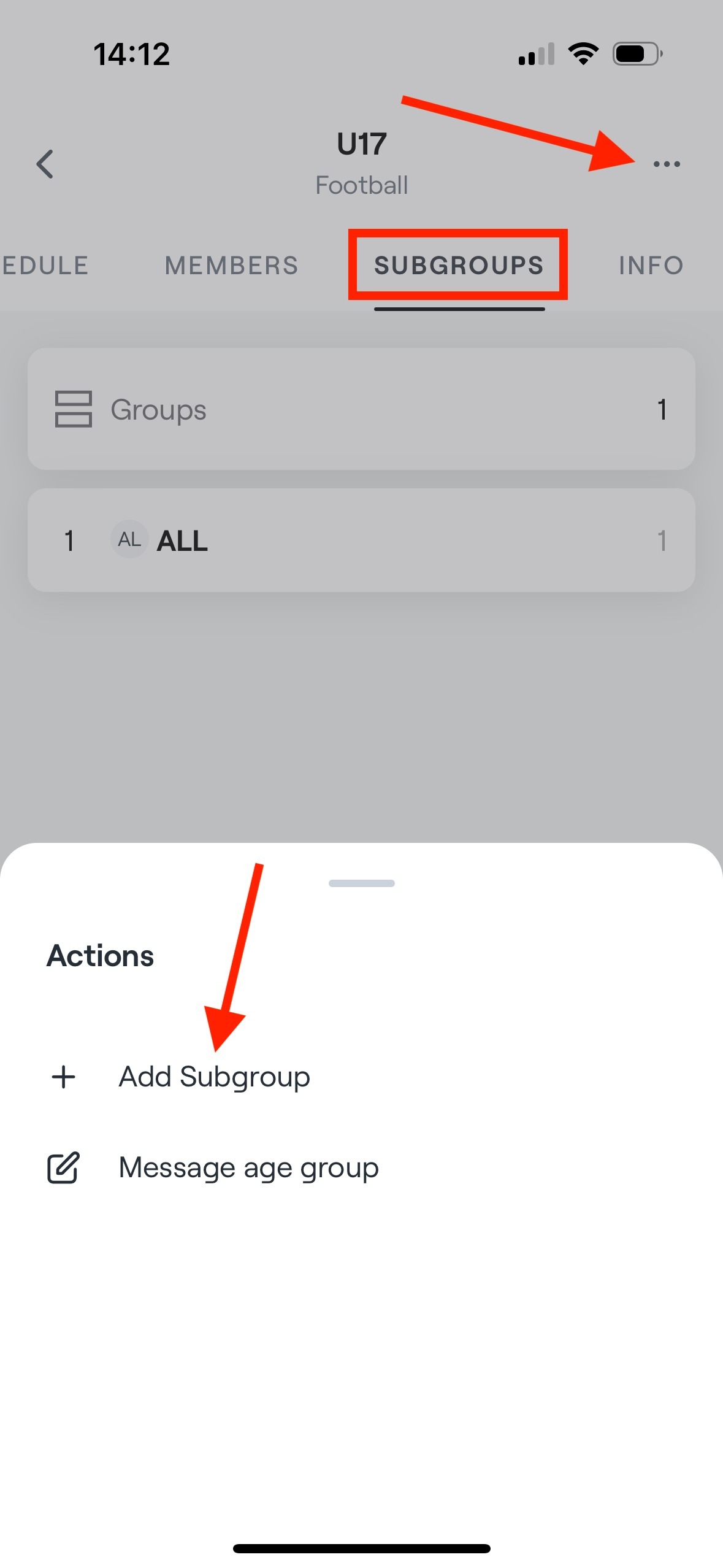
1. Go to groups and select the group you want to play with then select Subgroups and then click the three dots in the upper right corner to add another Subgroup.
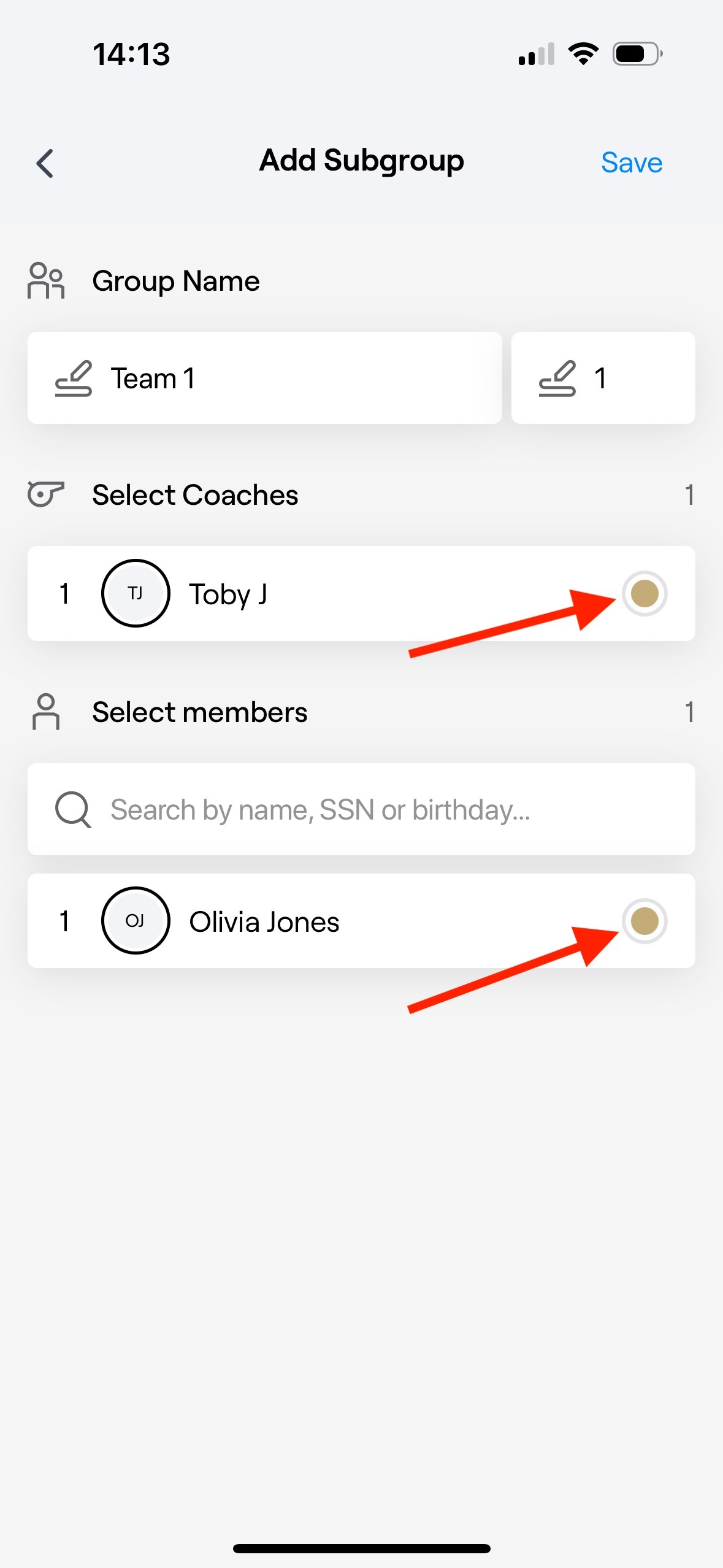
2. You create a name for the group and select the members and coaches that are supposed to be in the subgroup. When you have selected everyone by clicking the circles by their name you click save in the upper right corner.
Edit subgroups:
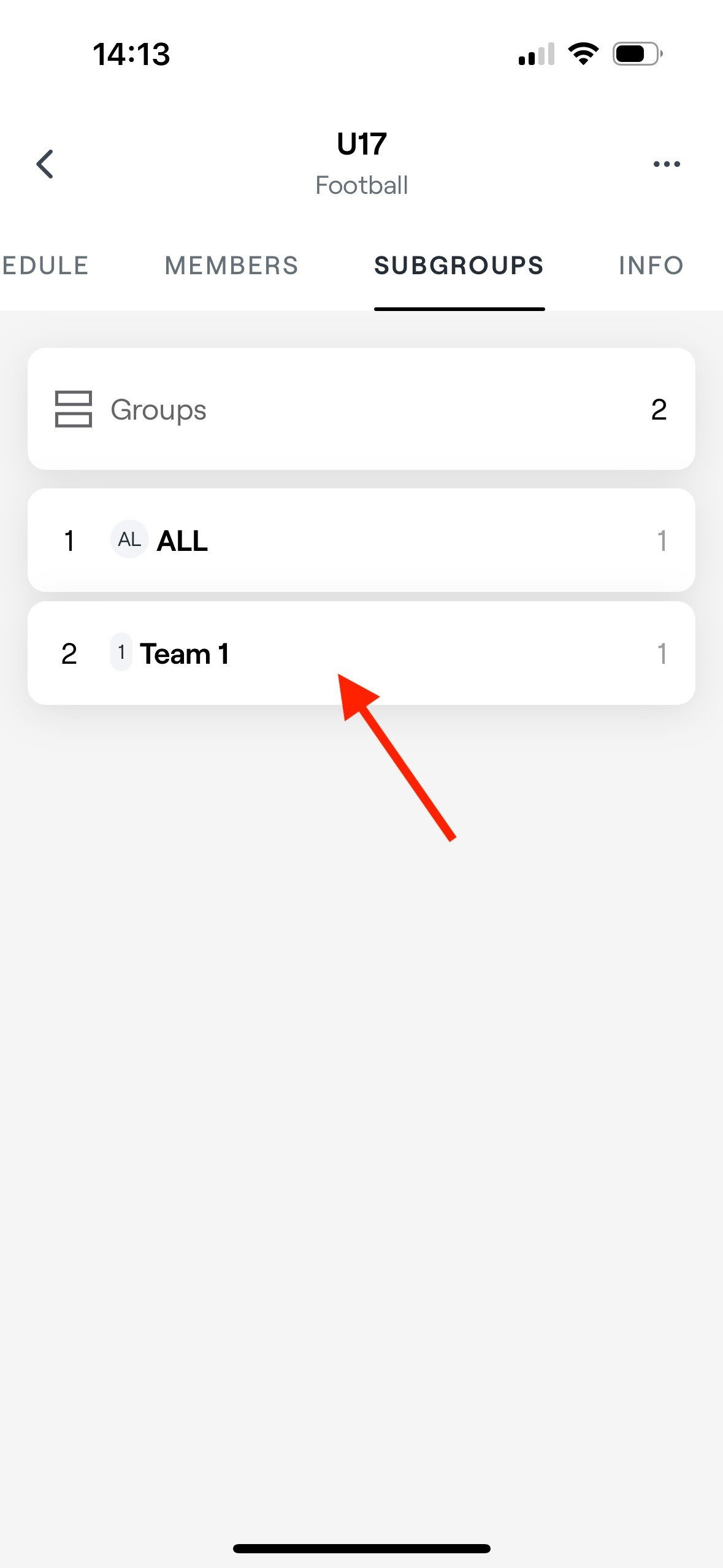
1. If you want to edit or remove the group you click the subgroup.
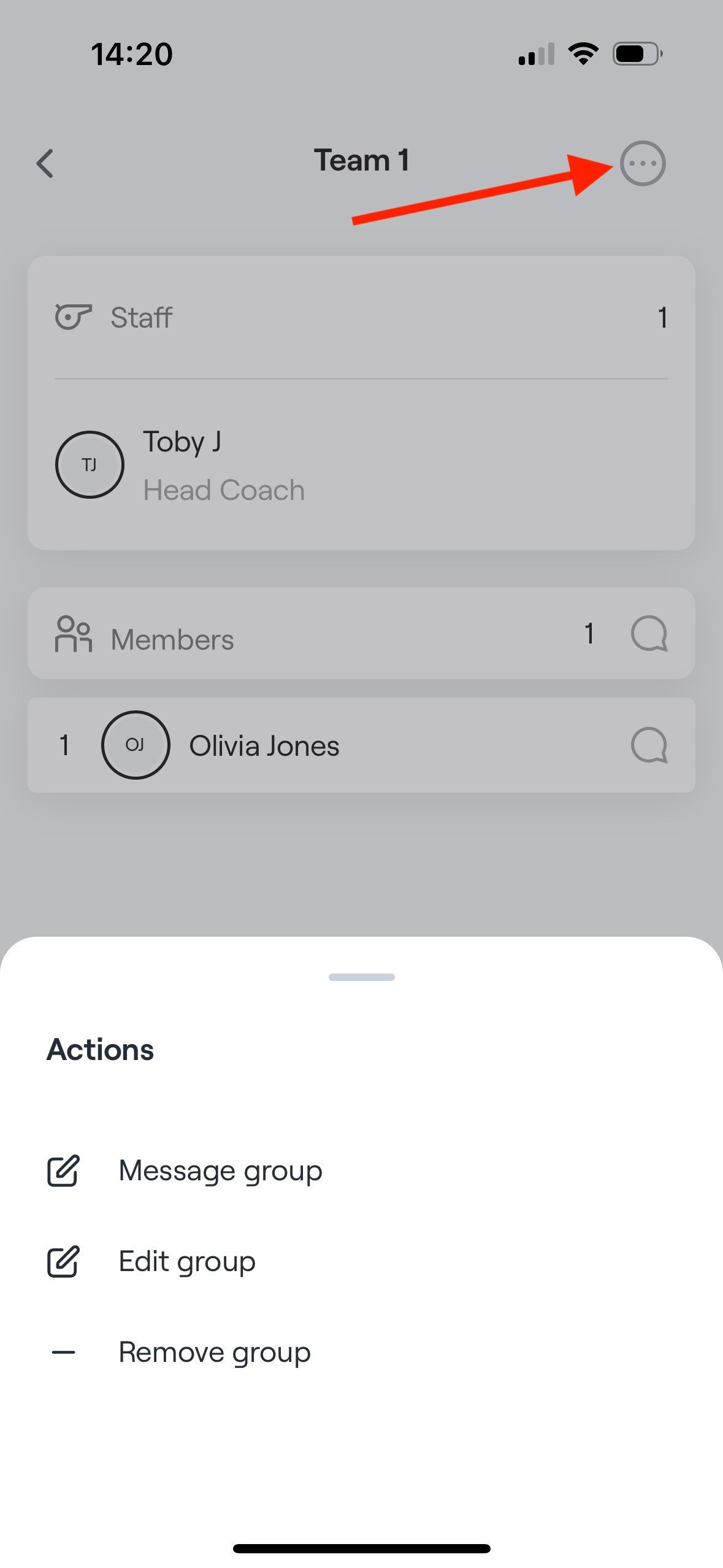
2. Then you click the three dots in the upper right corner and then you can click Message group, Edit group or Remove group. To remove members or coach you need to uncheck the circle by their name.
On a computer (Askja)
Open the group and go to the Subgroups tab.
Click Create Subgroup, give it a name (for example "Week 1" or "Goalkeepers") and save.
Drag players and coaches from Staff and Available members on the left onto the subgroup. Tick several at once to move them together.
Use Add member to add someone who is not yet in the group, or Automatic import to fill subgroups automatically.
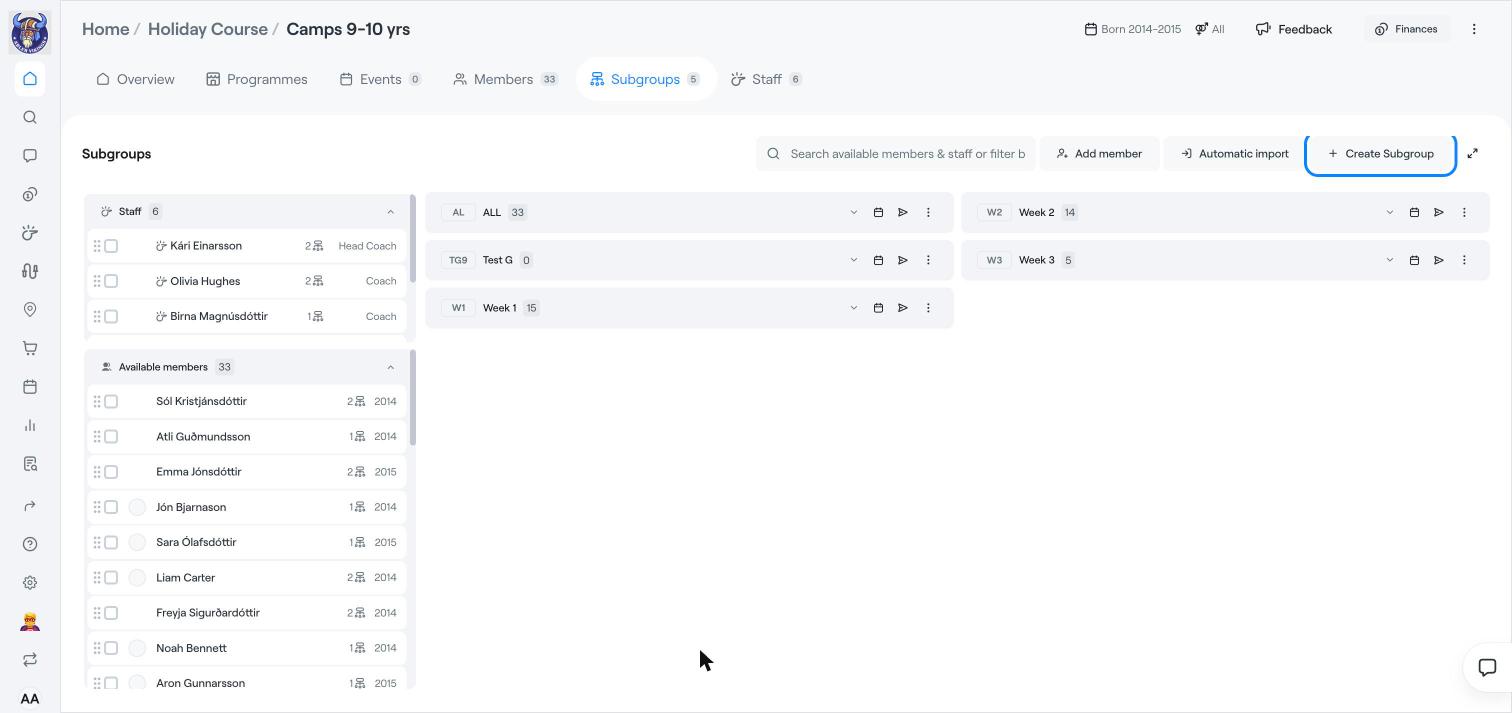
Each subgroup shows how many members it has. Use the icons on a subgroup to see its events, send its members a message, or open the menu (⋮) to rename or delete it.